Create and Manage Courses
View course:
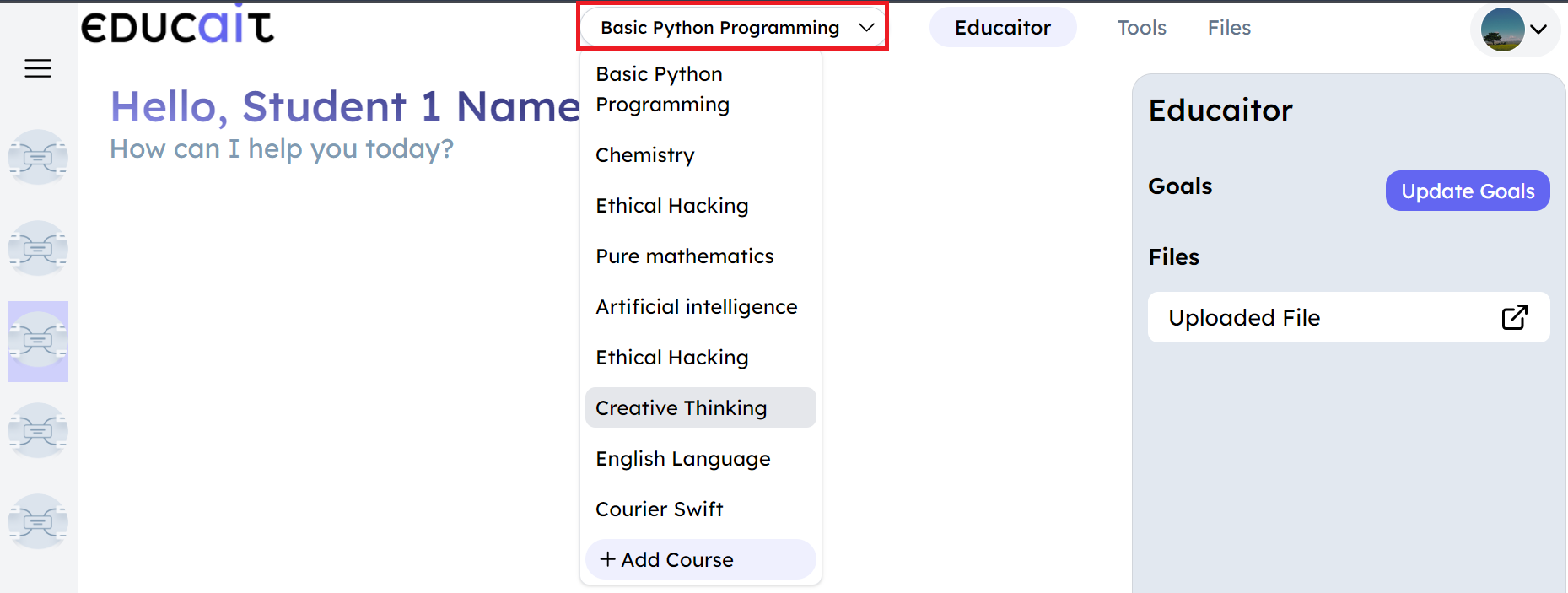
To view the course
For student
Select the Course and ask questions, AI-based Educait responds to queries.
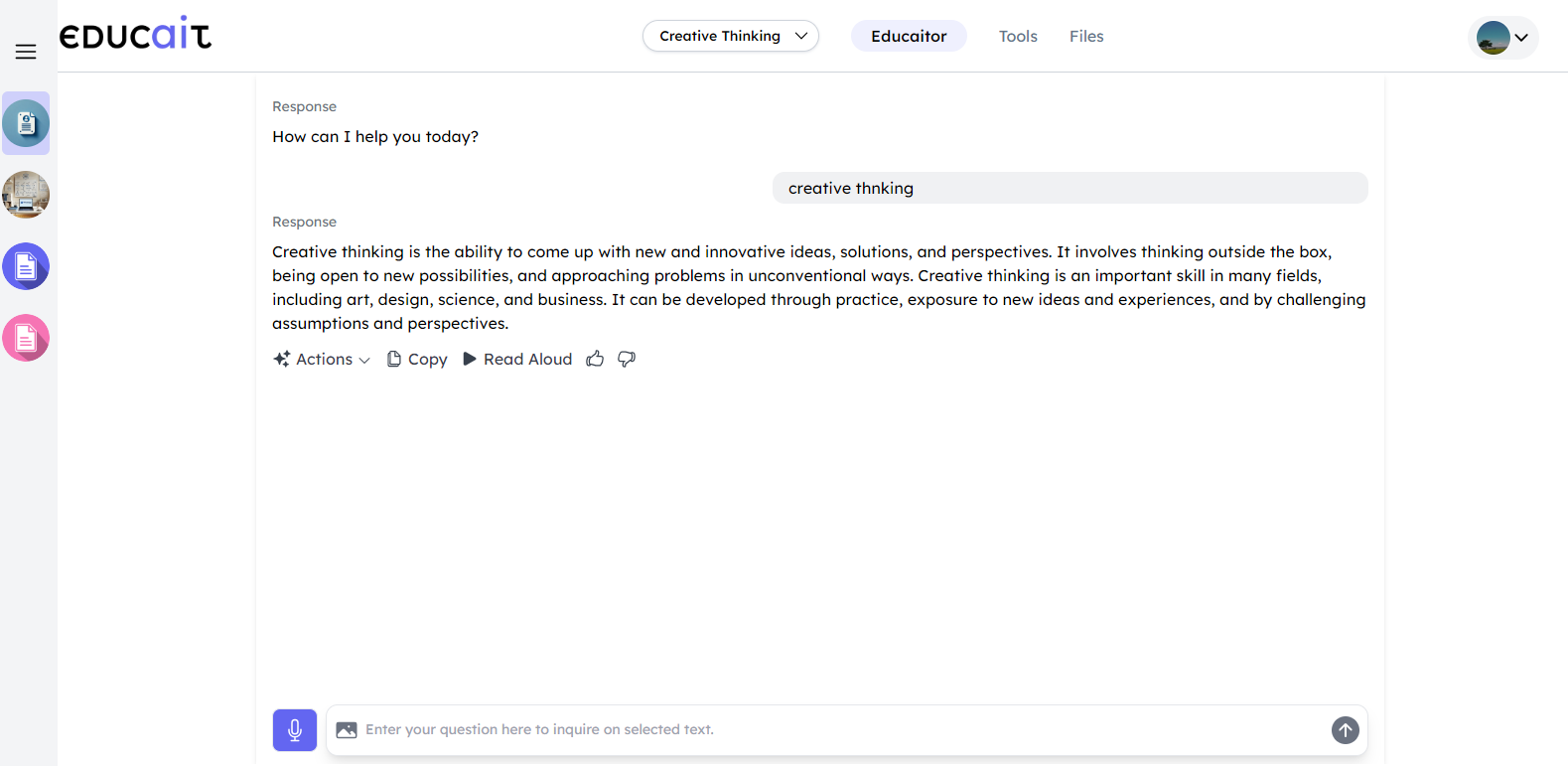
Select the course
Students can choose which action AI wants to perform for them. Options are Actions, Copy, Read Aloud.
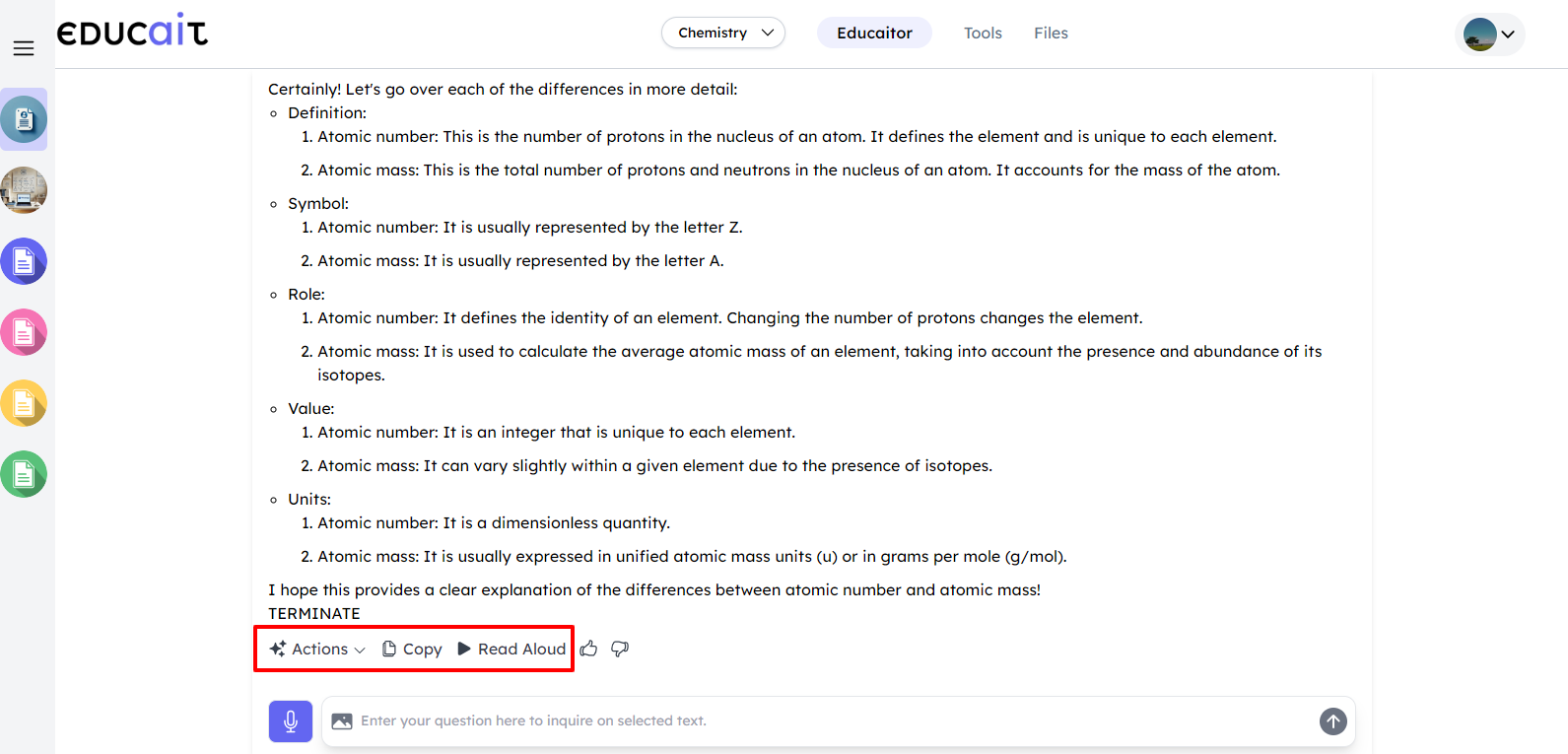
student chooses which action to perform
Click on Actions dropdown menu, you can change the AI response to Simplify, Quiz me, Modify Length, Translate, and Change Tone.
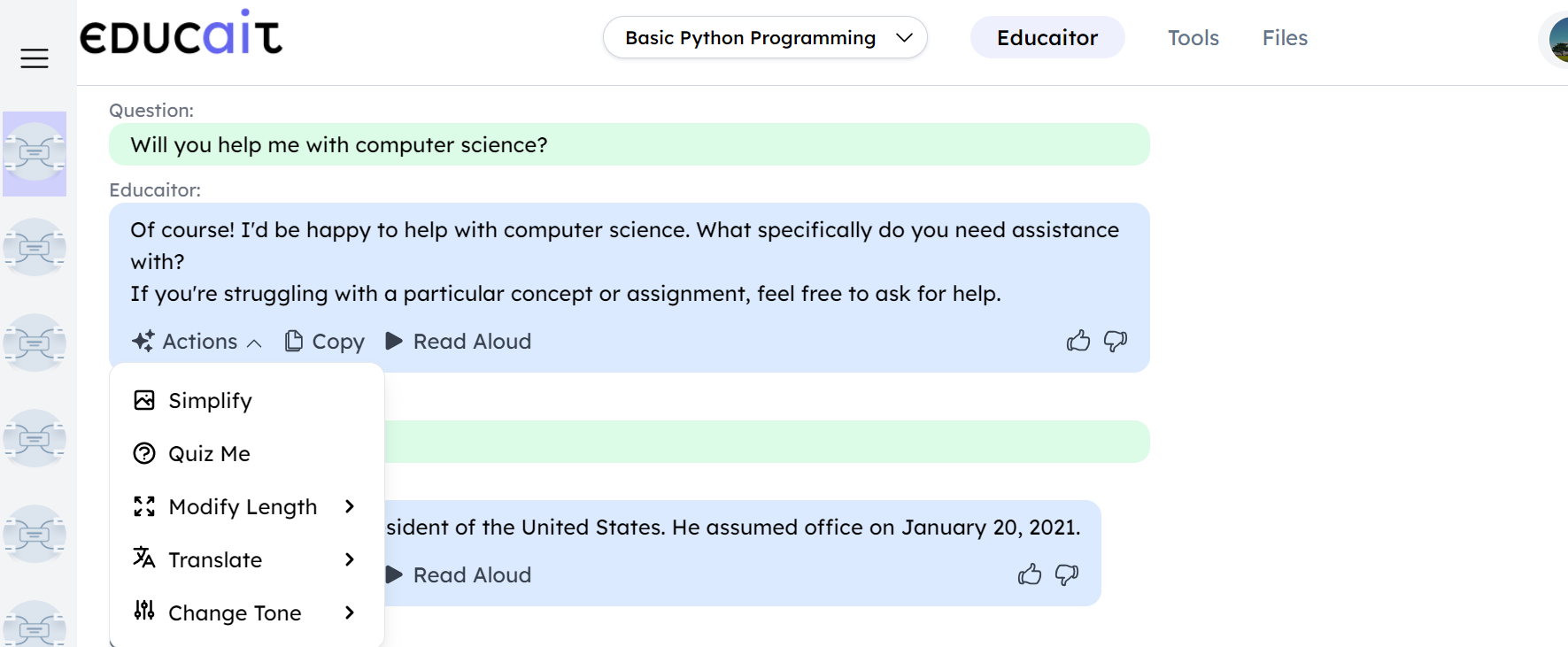
Actions dropdown menu gives list of actions AI performs on the response
Action
Description
Simplify
Responses are provided in easy-to-understand language
Quiz me
An AI-based educaitor evaluates how much a student has understood
Modify length
Answers are given in brief or in detail, depending on the Preferences
Translate
Answers are translated into different languages
Change Tone
Answers are provided in casual, formal, playful, or friendly tones
Copy
It copies the text
Read Aloud
AI-based Educaitor reads the text to the students
Create/Edit Course:
Teacher
To add courses for teaching and customize them based on the subject and grade, teachers can follow these steps: 1. Click on the Courses dropdown menu located at the top of the screen. 2. Select +Add Course from the dropdown menu.
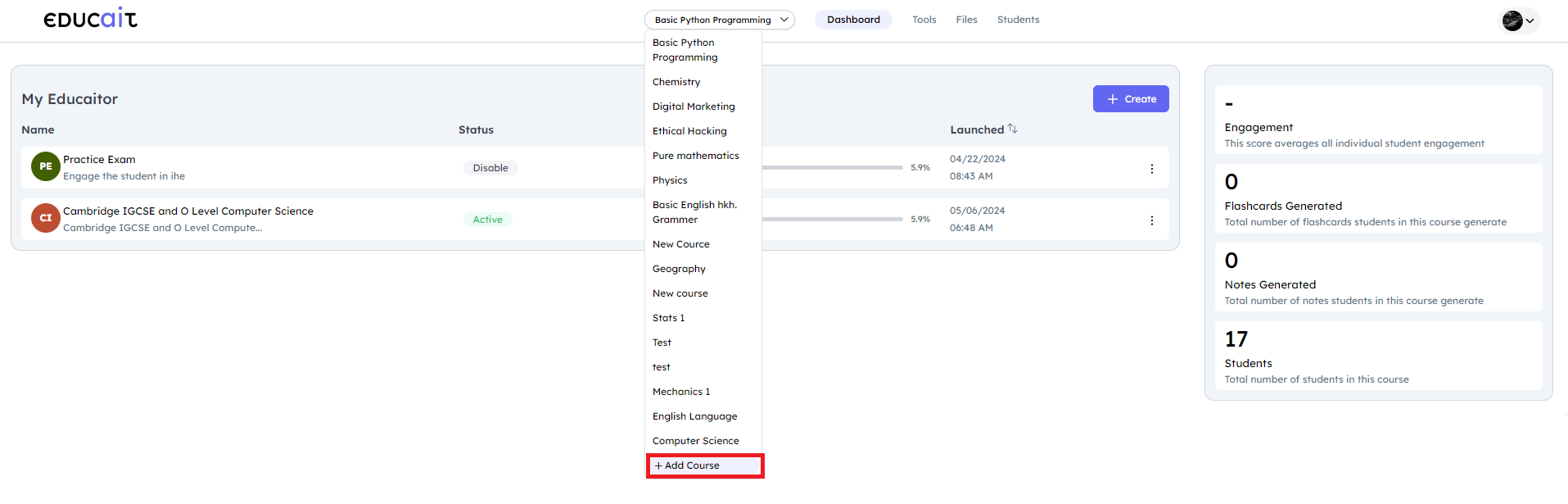
Teacher add course
The teacher will be prompted to give a brief course description. Please provide a course title and specify the Subject and Grade for the course. Then, click Continue to proceed.
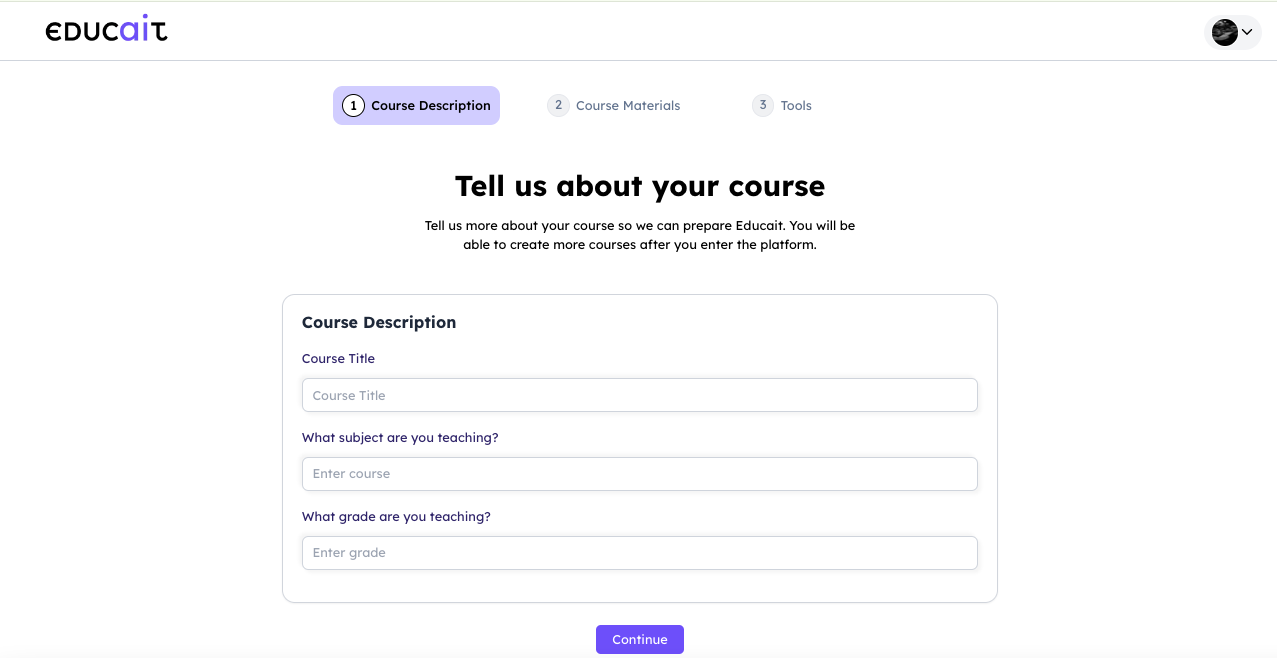
Teacher gives brief description about the course
In the next step, the teacher will upload relevant course materials. Use the upload button to add the necessary course materials, including textbooks and reference materials. If you prefer not to add any course materials, you can click Skip to continue. Note: These course materials serve as reference materials for AI Educaitors.
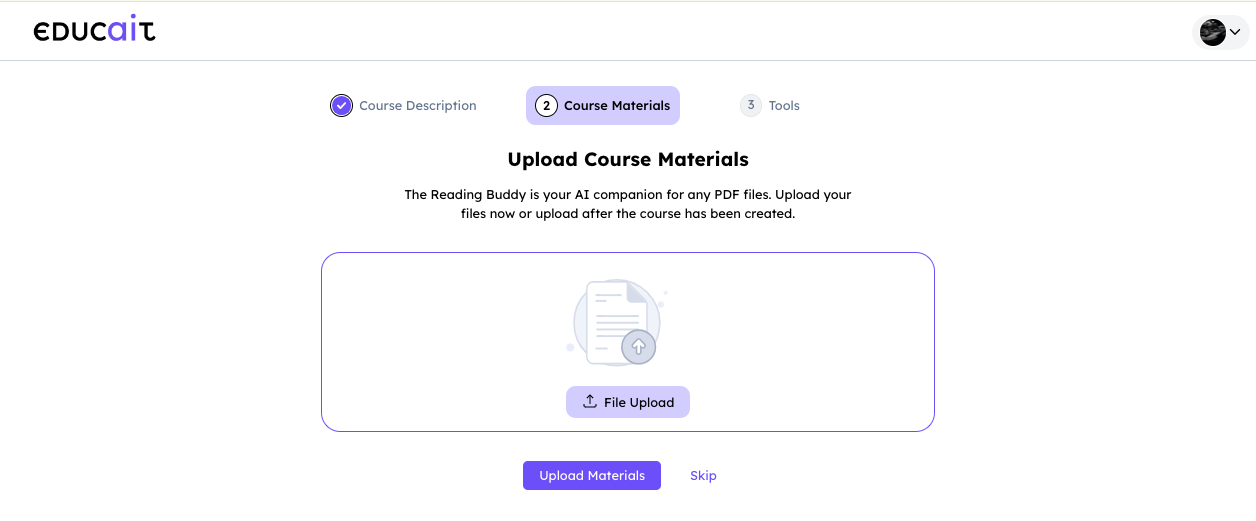
Teacher uploads relevant course materials
The teacher can incorporate various tools into your course to quiz students, evaluate their performance, and enrich their learning experience with interactive multimodal elements. Simply select the tools you wish to add to the course, then click Continue to save the course.
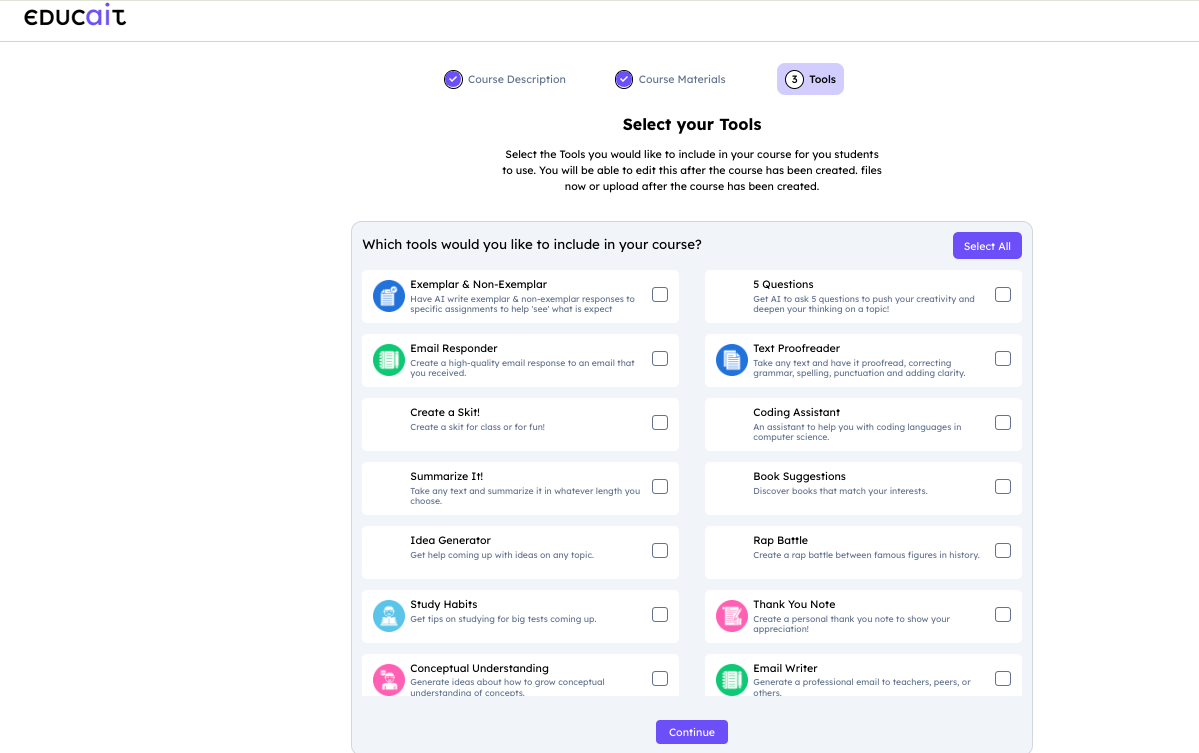
Teacher incorporates various tools
After successfully creating the course, you can find it listed among your courses at the top of your screen. To explore the course, simply click on Go to Course.
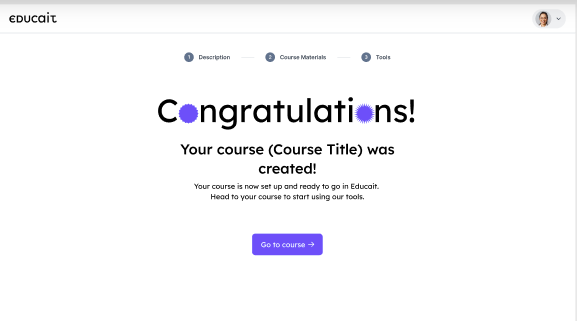
Teacher can find the list the courses on the screen