Files
This section contains digital information, or documents submitted by users, transferred from their local devices for sharing with others.
Both students and teachers can also upload materials to Educait for review or assistance by clicking on Upload File, as demonstrated below.
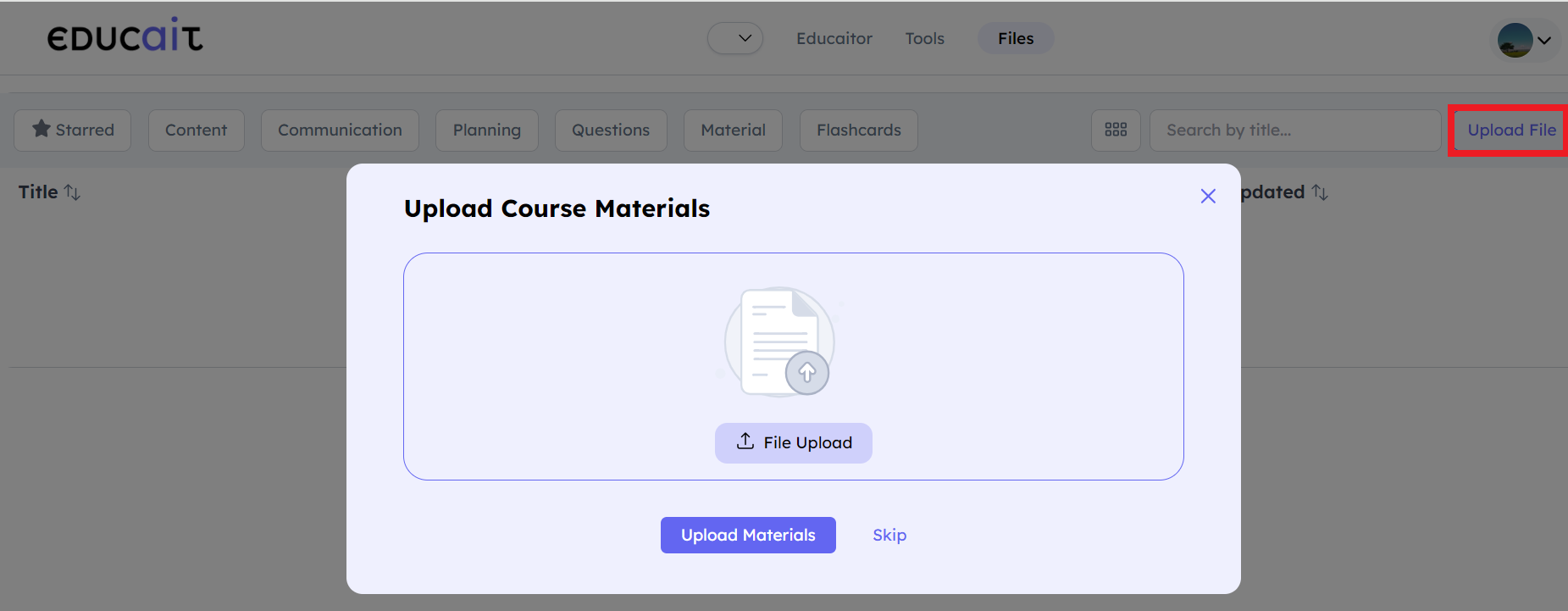
Teacher uploads course materials
To selectively share files with another user, click on the ellipses as indicated below, then select Share.
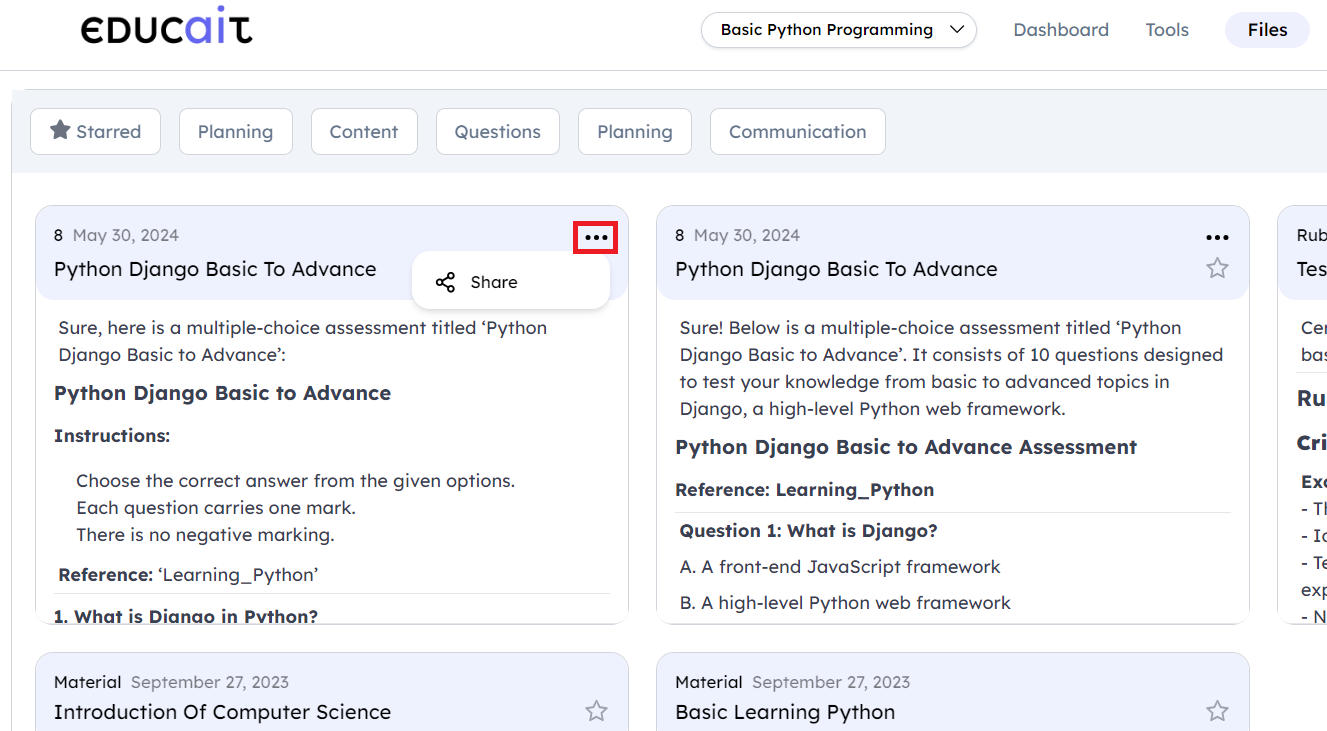
sharing the file to other user
Segregate and select the Tools based on following mentioned criteria:
Starred
Content
Questions
Planning
Communication

It shows responses based on selected criteria
For student
When student click on Files, the below screen is shown.
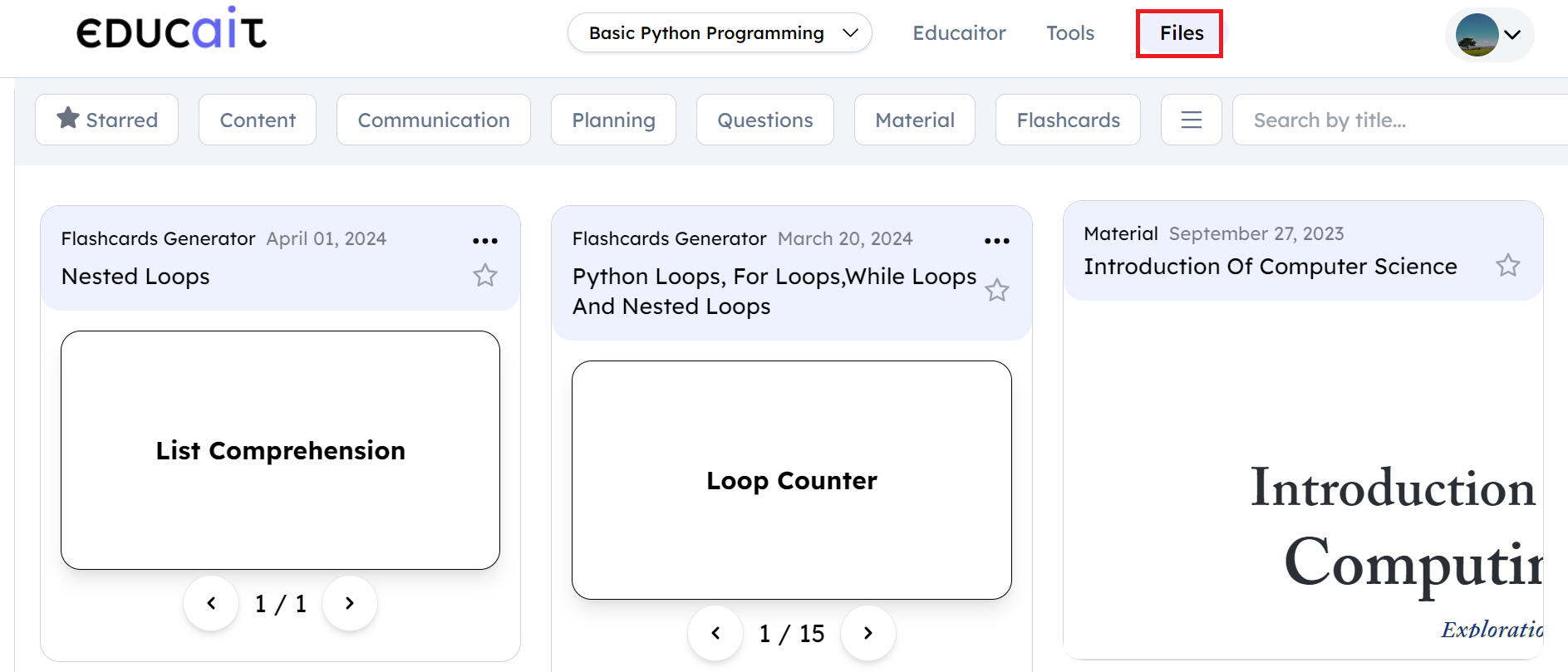
Student can see all the files
For Teacher
When Teacher click on Files, the below screen is shown.
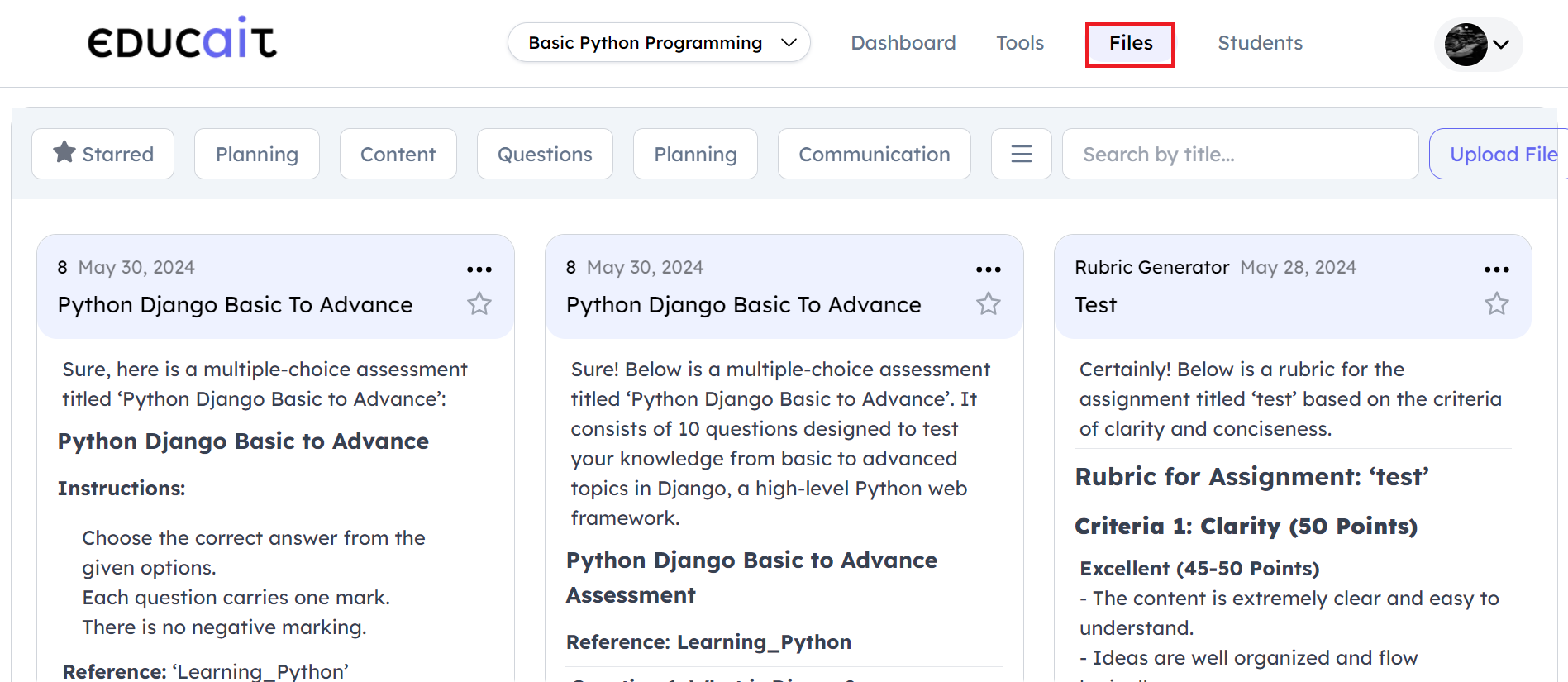
Teacher can see all the files
Students Enrolled
In this section, a teacher can view the enrolled students along with their respective final grades, completion status of assignments, and their level of engagement.
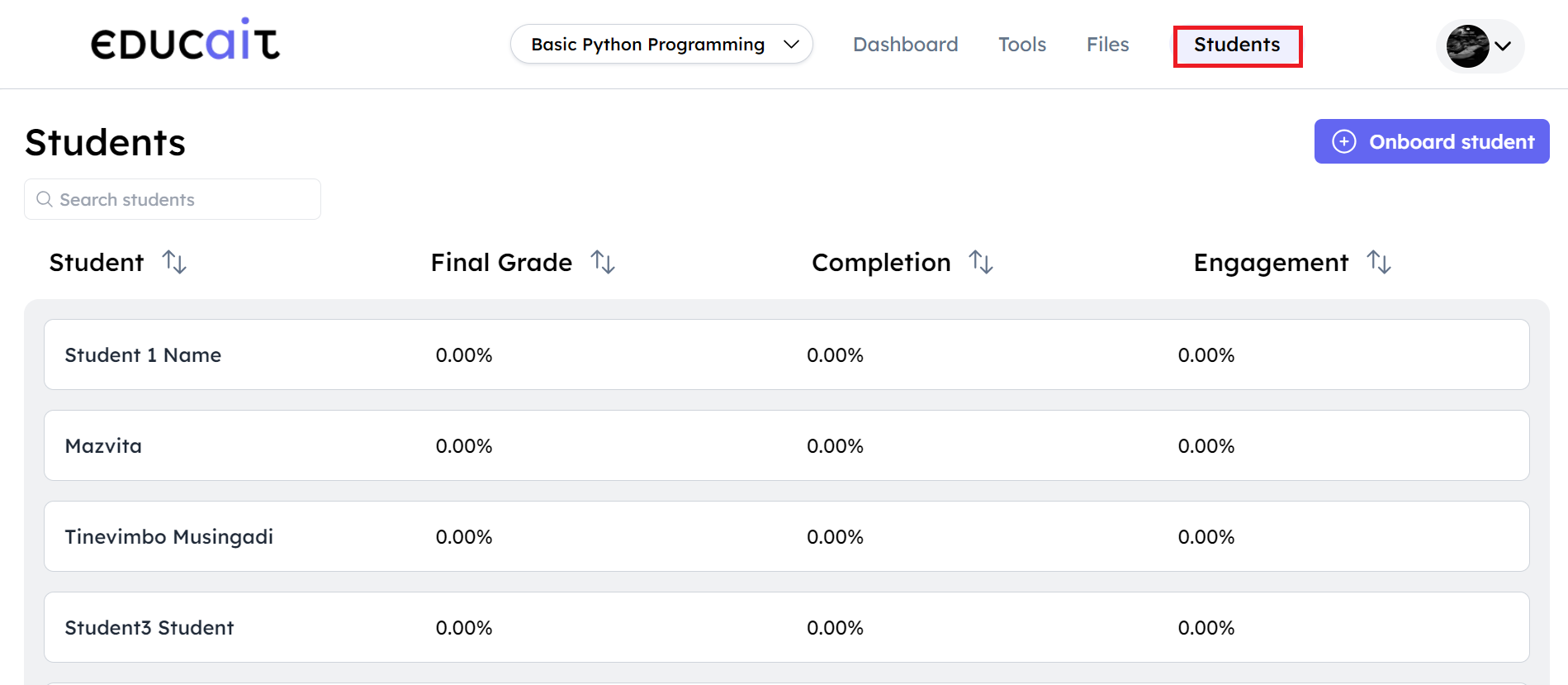
Teacher views all enrolled students
Choose an enrolled student to access their details.
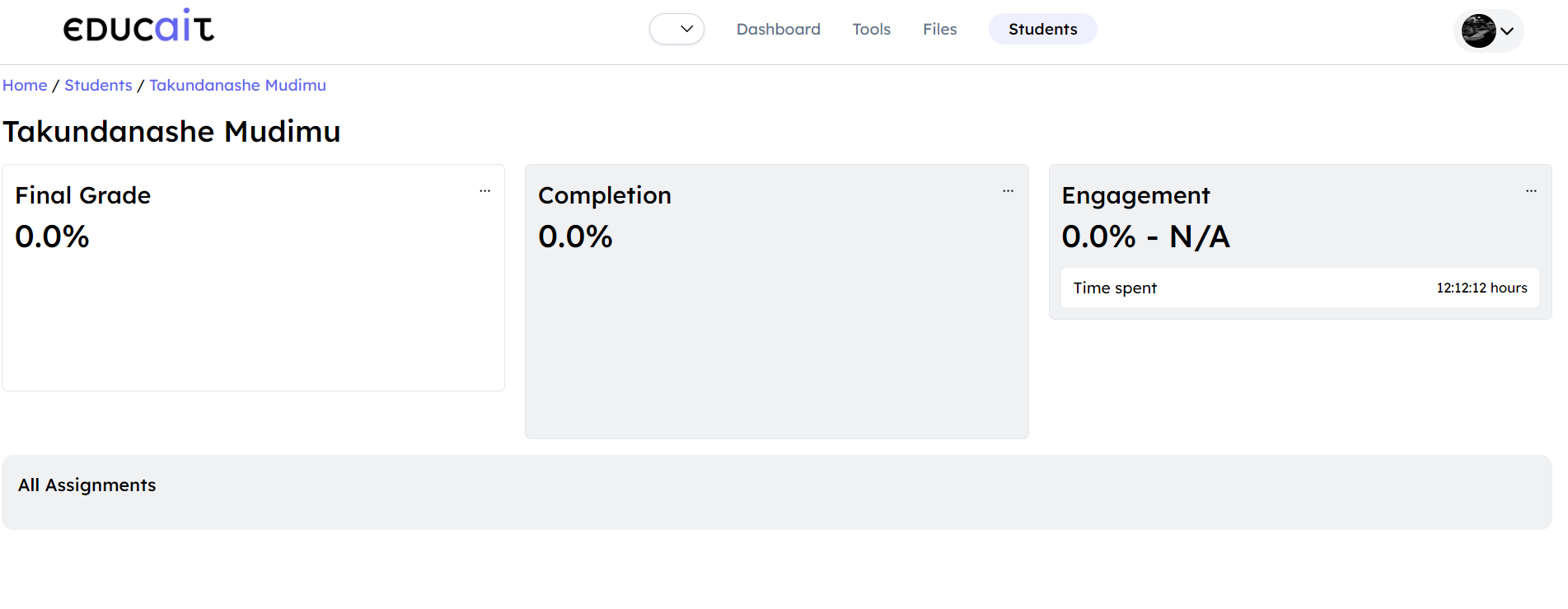
Teacher can select a student to access their details
Monitor Students
The Educator Dashboard provides a quick overview of students’ activities. Monitoring these activities helps identify and address learning gaps, track and compare progress, and offer timely support for better results.
Key features include: * Engagement * Flashcards Generated * Notes Generated * Students
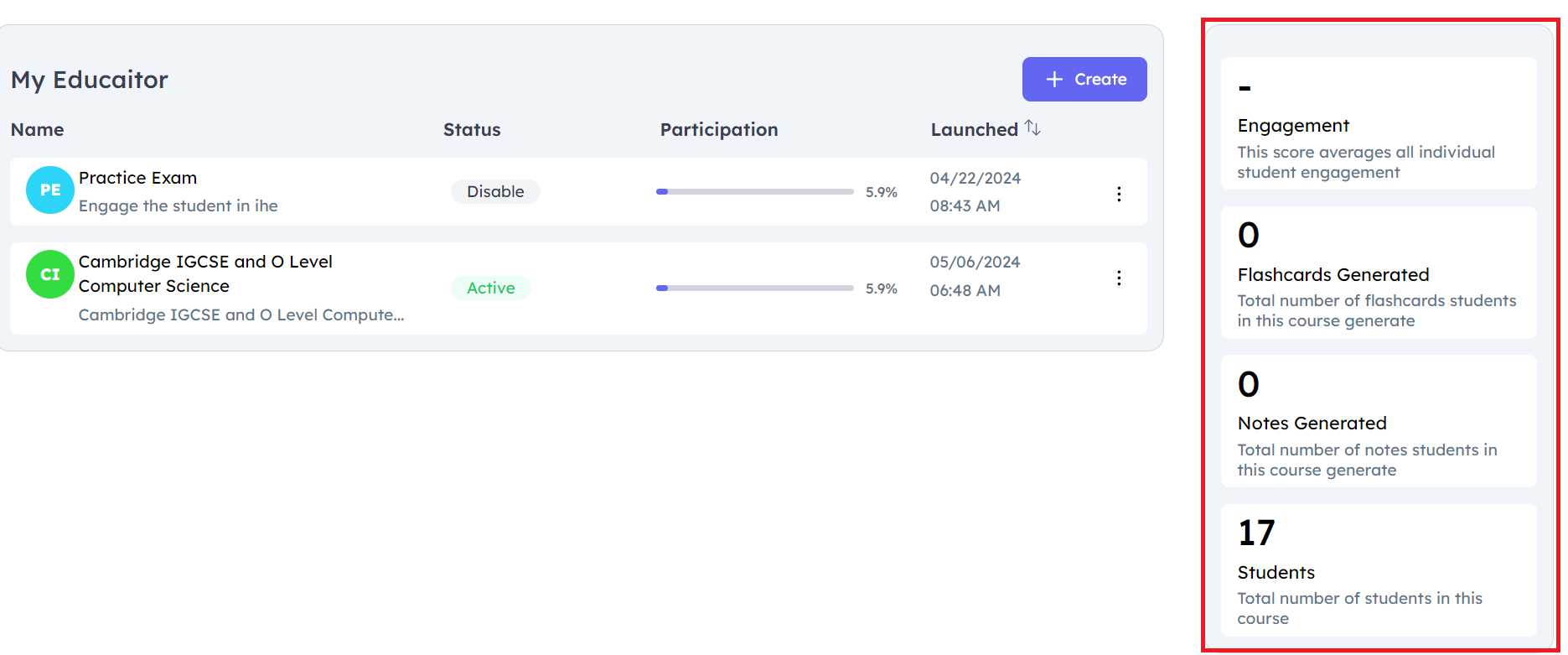
Teacher can view student activities
For a more detailed view, navigate to the :ref: “Students Enrolled” section.
For detailed view, navigate to Students Enrolled section
Generate Summary/Visualize
Teachers have the capability to generate summaries for various Educaitors.
From the Dashboard navigate to My Educaitors
View
Edit
Delete
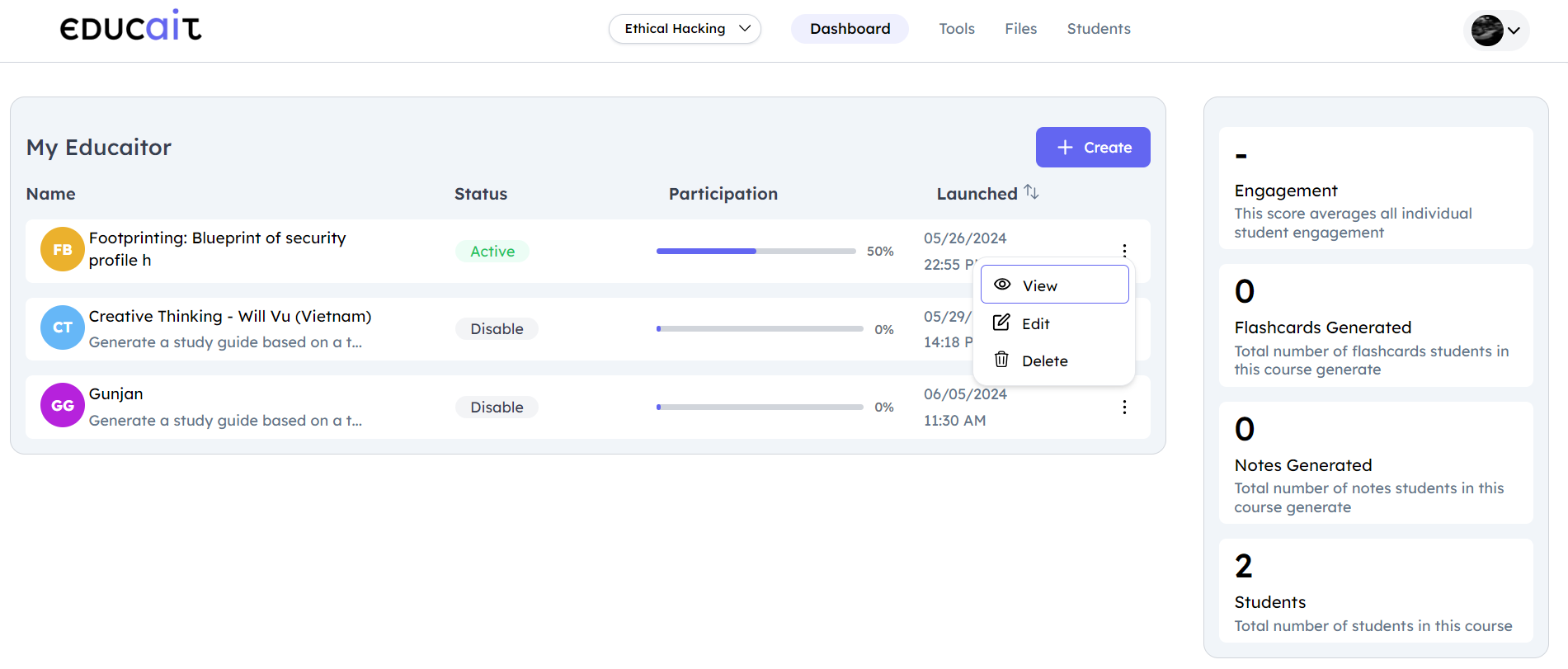
Teacher can view, edit, delete the educaitors
View
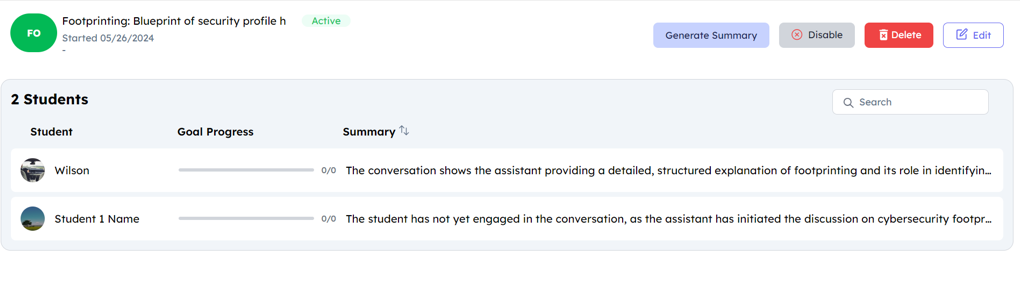
Teacher can view the progress of the student
Select any of the onboarded students to access their summary.
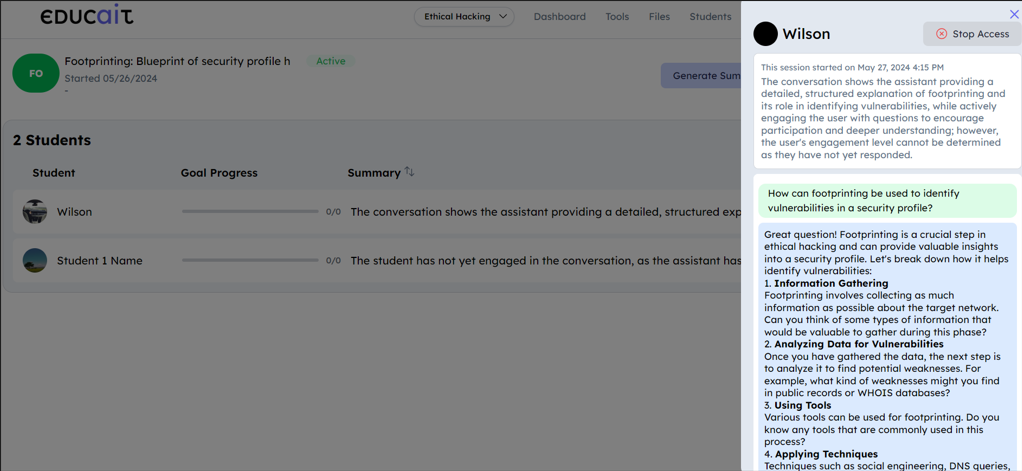
Gives summary of onboarded students
Edit Choose the Edit option to modify or update the details of the Educaitor.
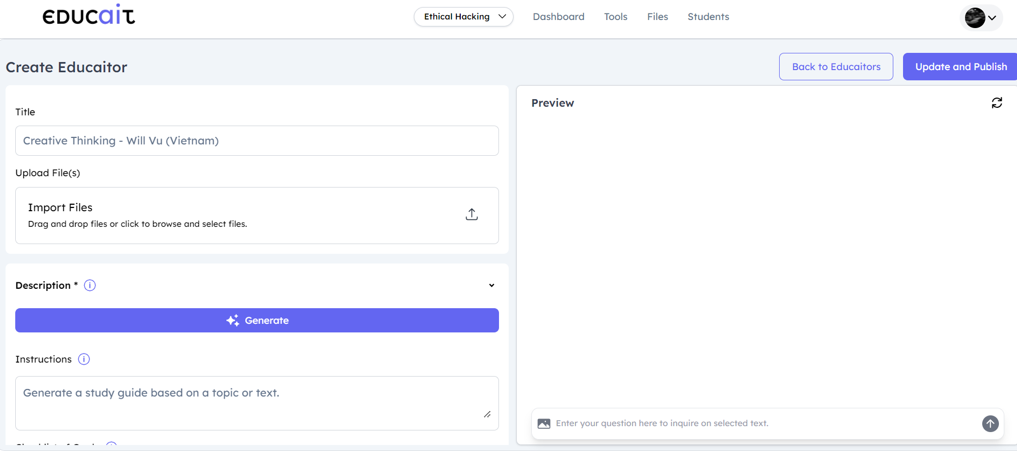
Educaitor details can be edited
Delete
Choose Delete to permanently remove the Educaitor. Please note that students will no longer be able to access this Educaitor after this action is completed.
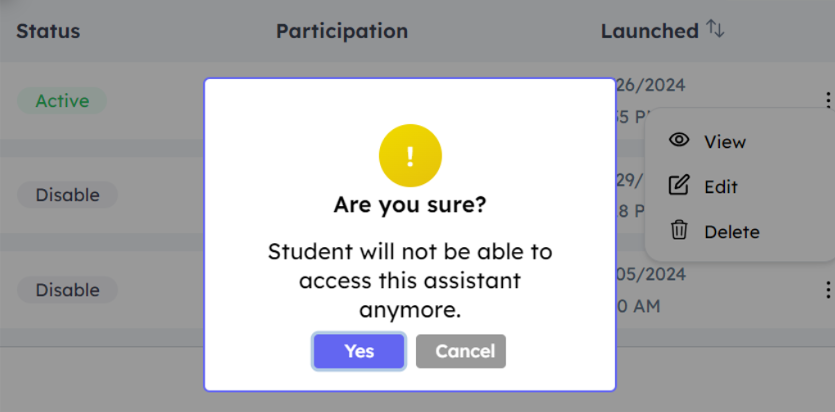
Educaitor is deleted
Student Participation
Students have the option to ask questions or request instant help using the AI-based Educaitor.
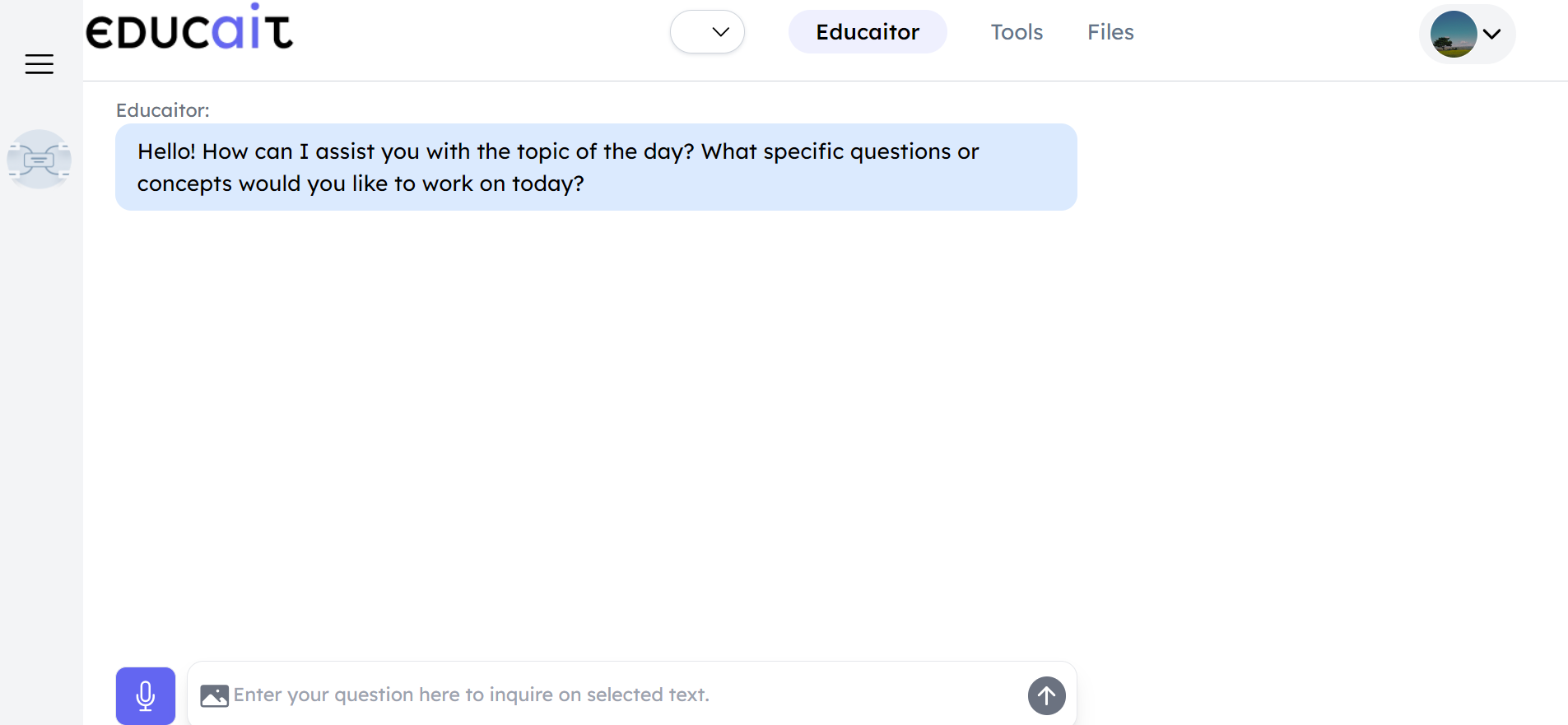
Students asks questions to AI based educaitor