Getting Started with Educait
Users can register on the Educait platform either as teachers or students, allowing both to benefit from its features.
Teachers Registration and Account Setup on Educait
1. Obtain Access to the Private Beta Version:
Contact the Educait Sales team to receive an invitation link for the Private Beta version.
2. Register on the Website:
Click on the invitation link sent by the Educait Sales team.
Select your preferred plan.
Create your account by entering the required details.
3. Login to Educait:
Visit the Educait website and click on the “Login” button.
Enter your email address and password to access your account.
Onboarding Process
Go through step-by-step tutorial designed to guide you through each phase of the process with ease and clarity.
Recover Password/Forgot Password
If you need to reset your password,click on Forgot Password. A link to reset your password will be sent to your registered email address. Follow the instructions in the email to set a new password.
Create Account/Setup & Login
Open your web browser and navigate to the Educait platform.
Click on the “Sign Up” button.
Choose the “Teacher” option.
Fill in the required details
Enter a secure password.
Verify your email address through the confirmation email sent to your inbox.
You can now login to Educait using your email id and password.
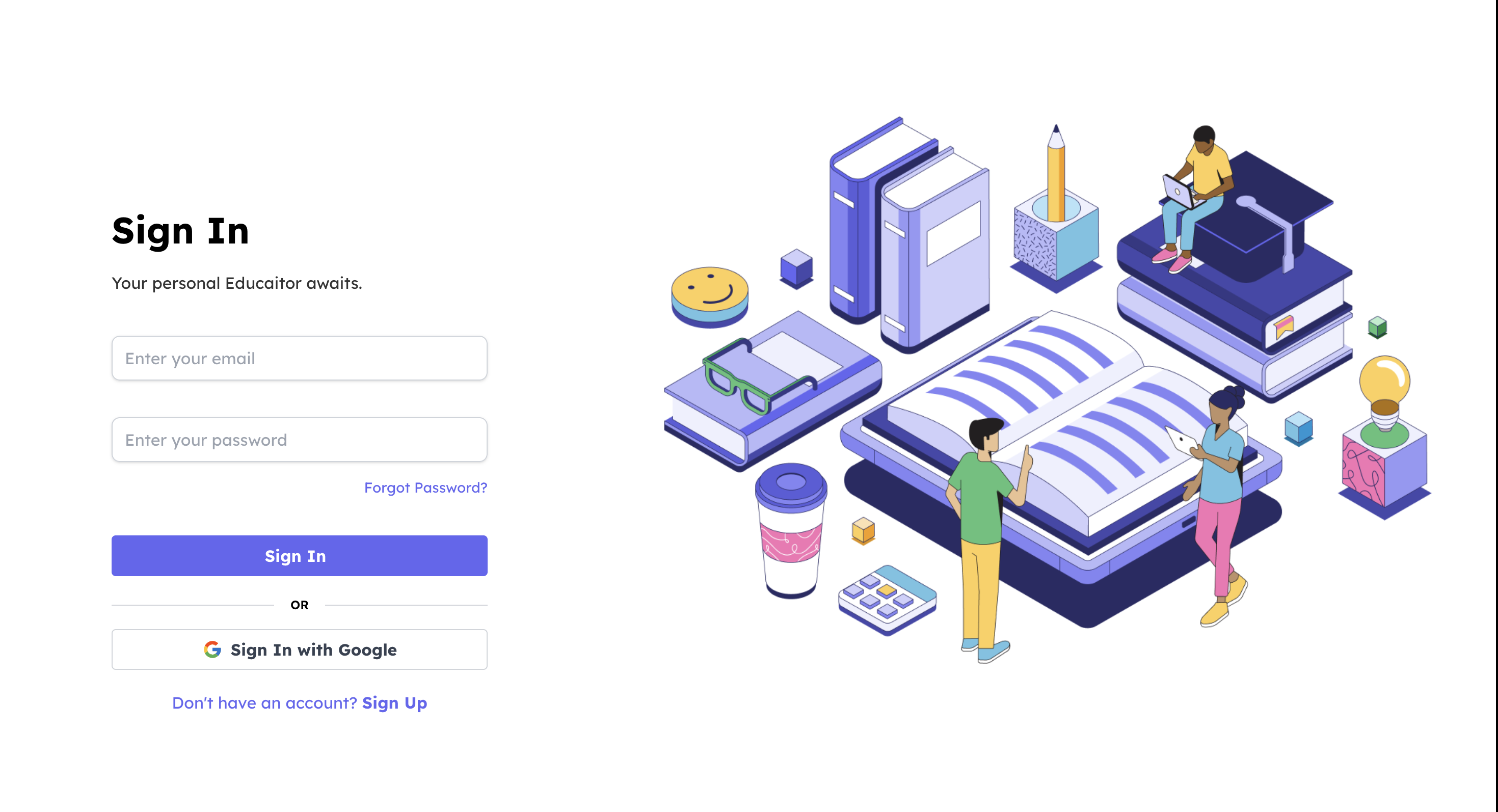
Educait Sign Up/Sign In
Student Register/Login
A teacher can onboard as many students as desired. To onboard students onto Educait, perform the following steps:
Navigate to the Students section in your Educait dashboard. Click on Onboard Student.
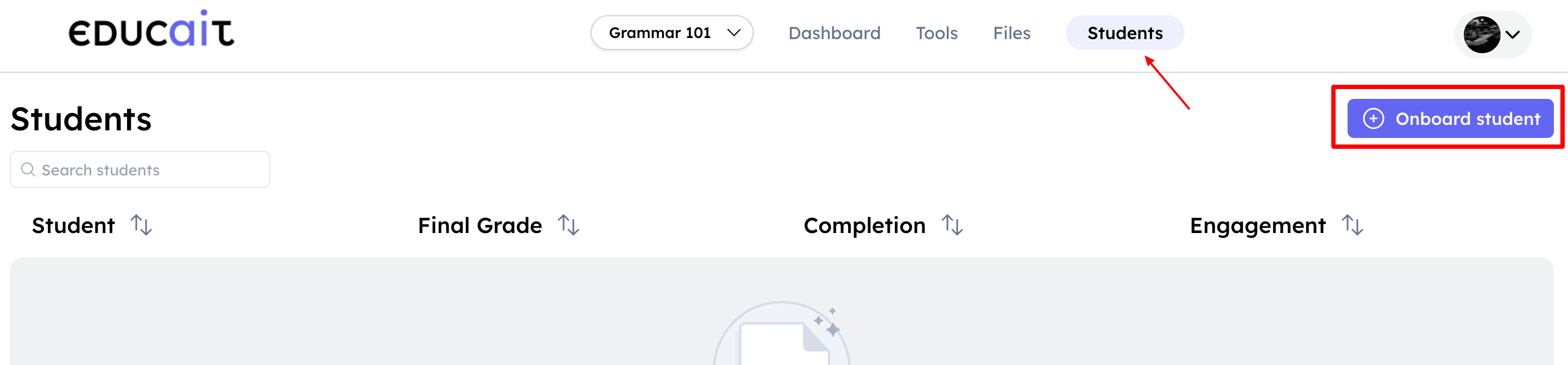
Onboarding Students to Educait
There are 3 ways to onboard students to Educait.
Copy Invite Link and Share
Select the option to copy the invite link.
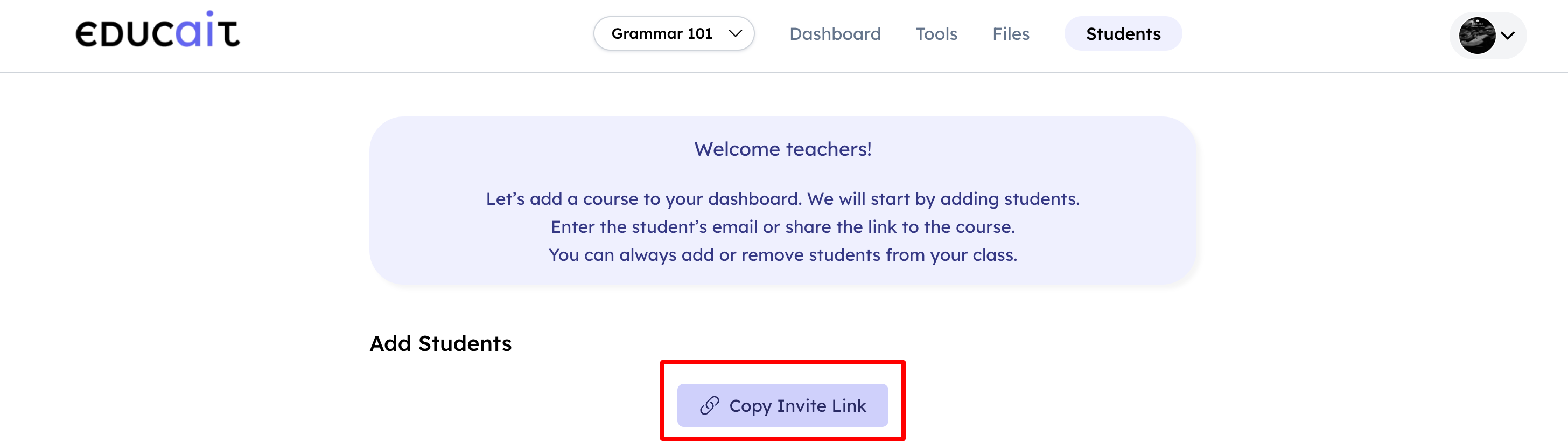
Educait Invite Students using platform link
Share this link with your students via email, social media, or any other communication platform to onboard them.
Send Invitations via Email
Enter the email addresses of your students in the provided field.
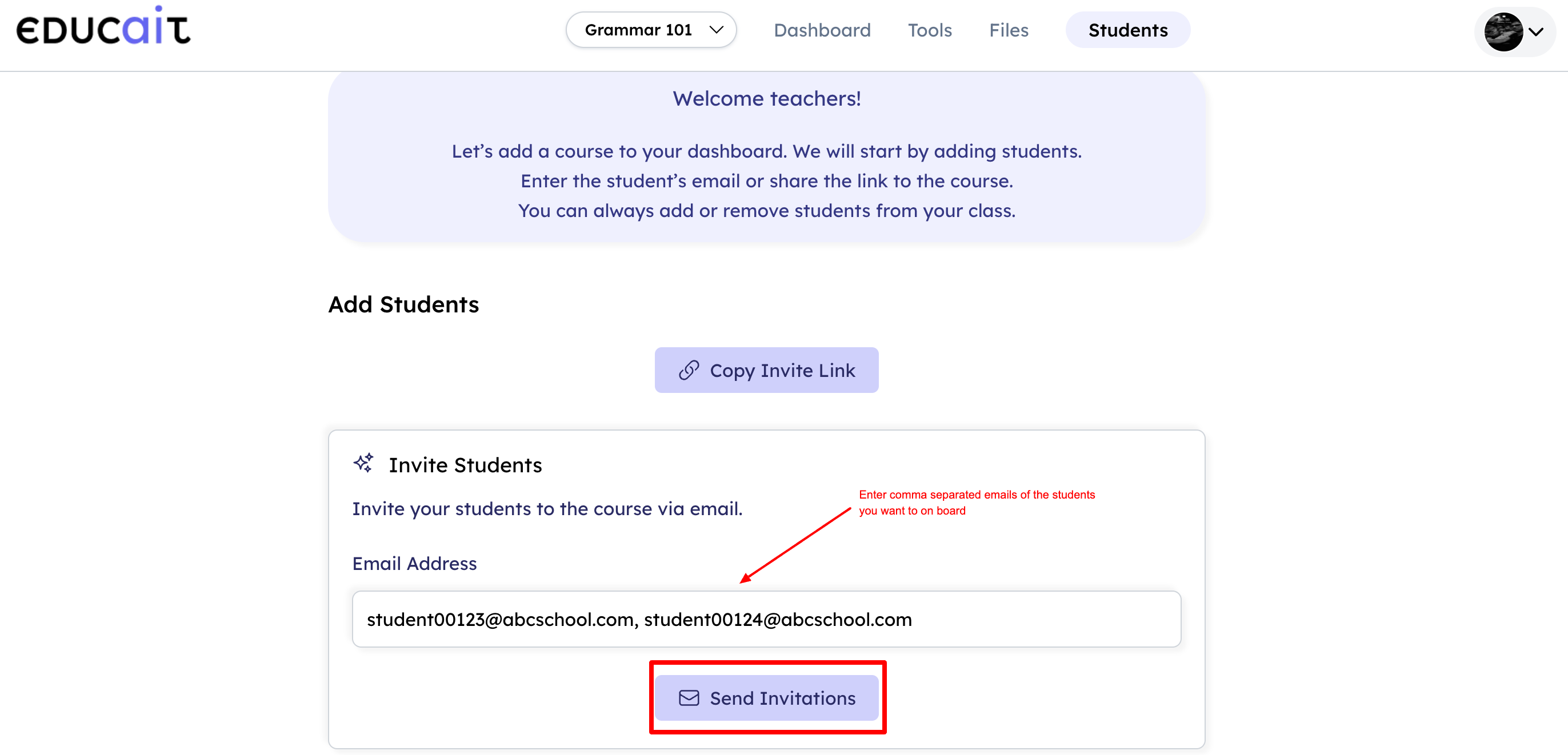
Educait Send Email Invitation to Students
Send the invitations to onboard them to Educat, directly from the Educait platform.
LMS Import
You can also use list of students from LMS platforms to import students in bulk.

Educait Onboard Students from LMS
Next Click Continue and go to Students to see the list of student names.
Note: If the students have not been onboarded you should retry with another method for onboarding. The below the screen will be displayed if student onboarding is unsuccessful.
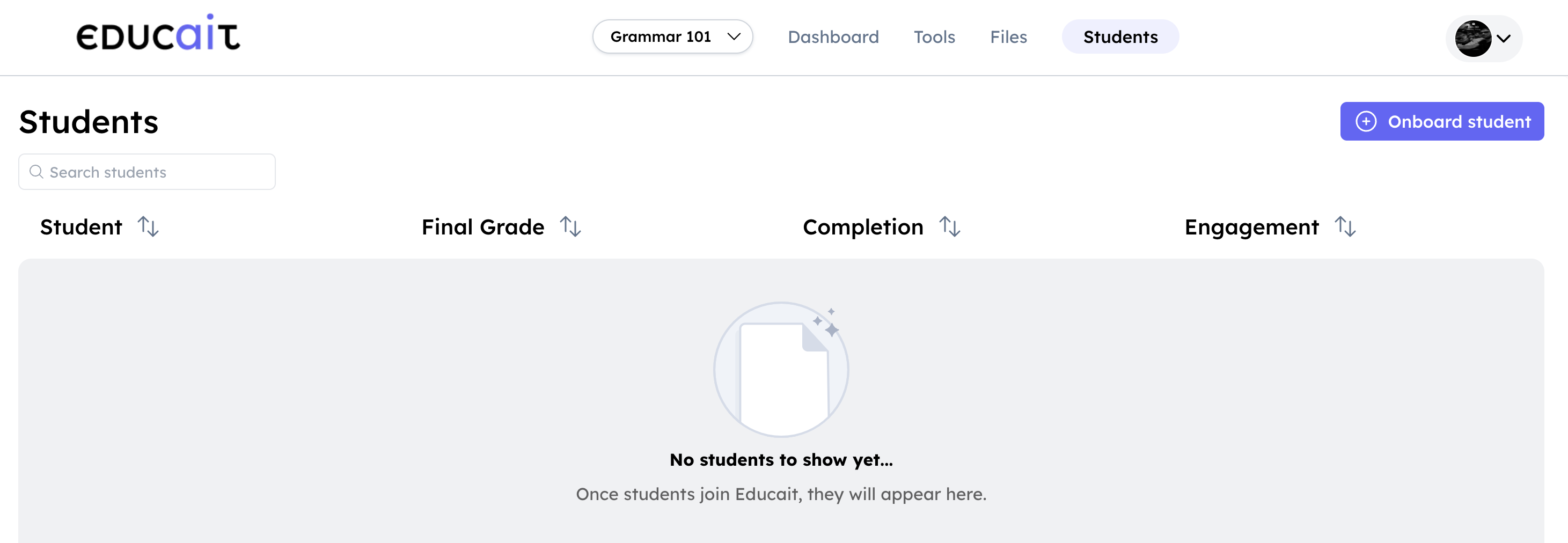
Educait No Students Onboarded
Once the students are onboarded, the Students section under the relevant course displays all student names, email IDs, mobile numbers, and available credits.
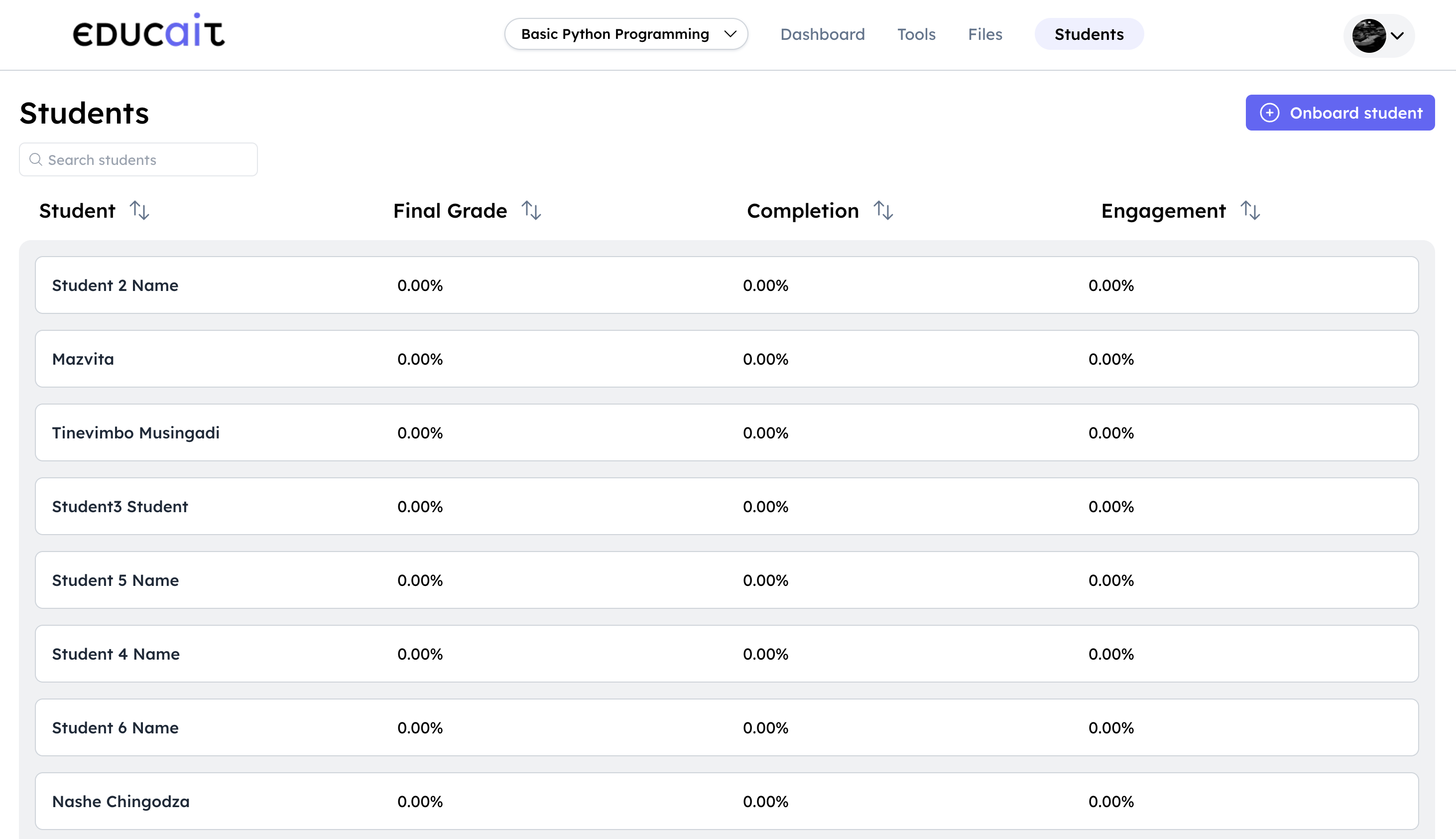
Educait List of Onboarded Students
Award Credits to Students
Teachers can allocate credits to the students for actions such as completion of course, good performance in assessments etc. To award credits to Students, perform the following steps:
Select the required course and navigate to the Students section.
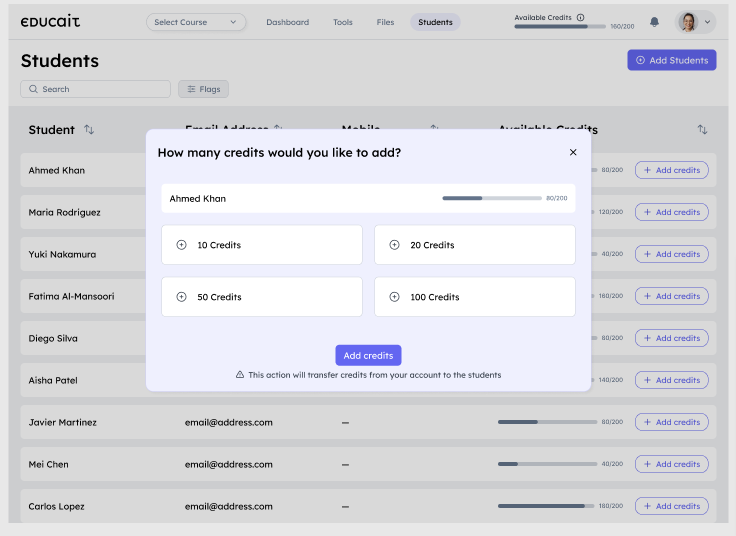
Students Dashboard
Click on +Add Credits button against the Student who needs to be awarded the credits.
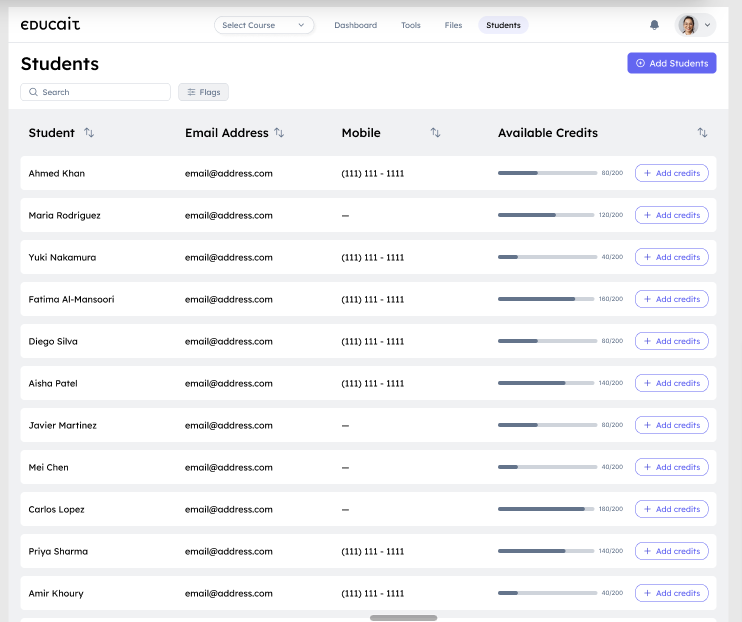
Credits Dashboard
Select how many credits should be awarded.