Create and Manage Educaitors
Now that your new course has been created, you have the option to add AI Educaitors and students to the course. For steps to add Students refer to the :ref:’Student Onboarding’ section of this guide.
Perform the following steps to add an Educaitor.
Select the + Create button located at the top right corner of your Educaitor interface.

To add an educaitor
Enter a Title for the Educaitor and select reference files. The reference files are populated based on the files uploaded during course creation.
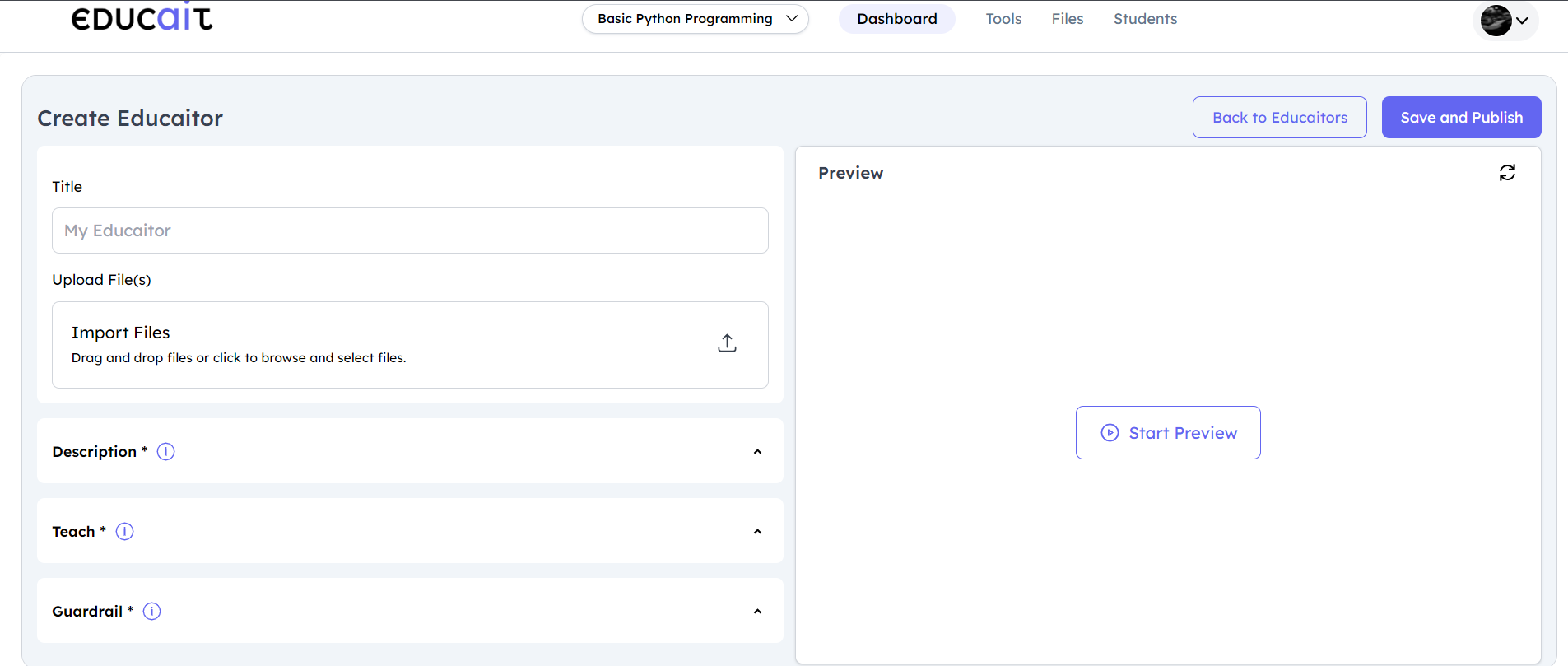
Details of an educaitor
Under the Descrition widget, you will find the option to generate a description. Click on Generate to receive an AI-generated description for the Educaitor. The Description section includes
Instructions: This informs students about the functioning of this Room.
Checklist of Goals: Offer a checklist outlining the objectives that the Room should lead the students through.
Student Message: Enter the message you want the students to see when they join the Room.
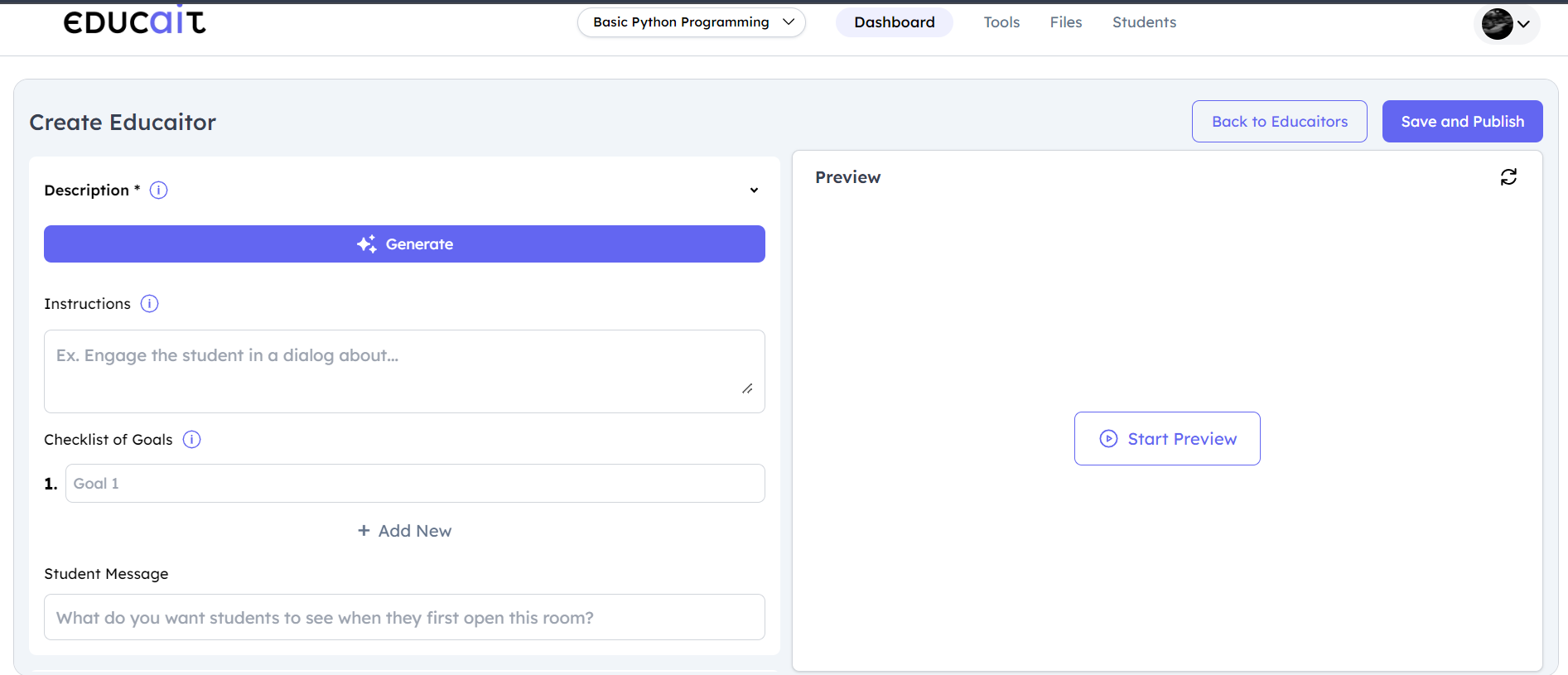
Description section informs students about functioning of the room
The Teach section includes:
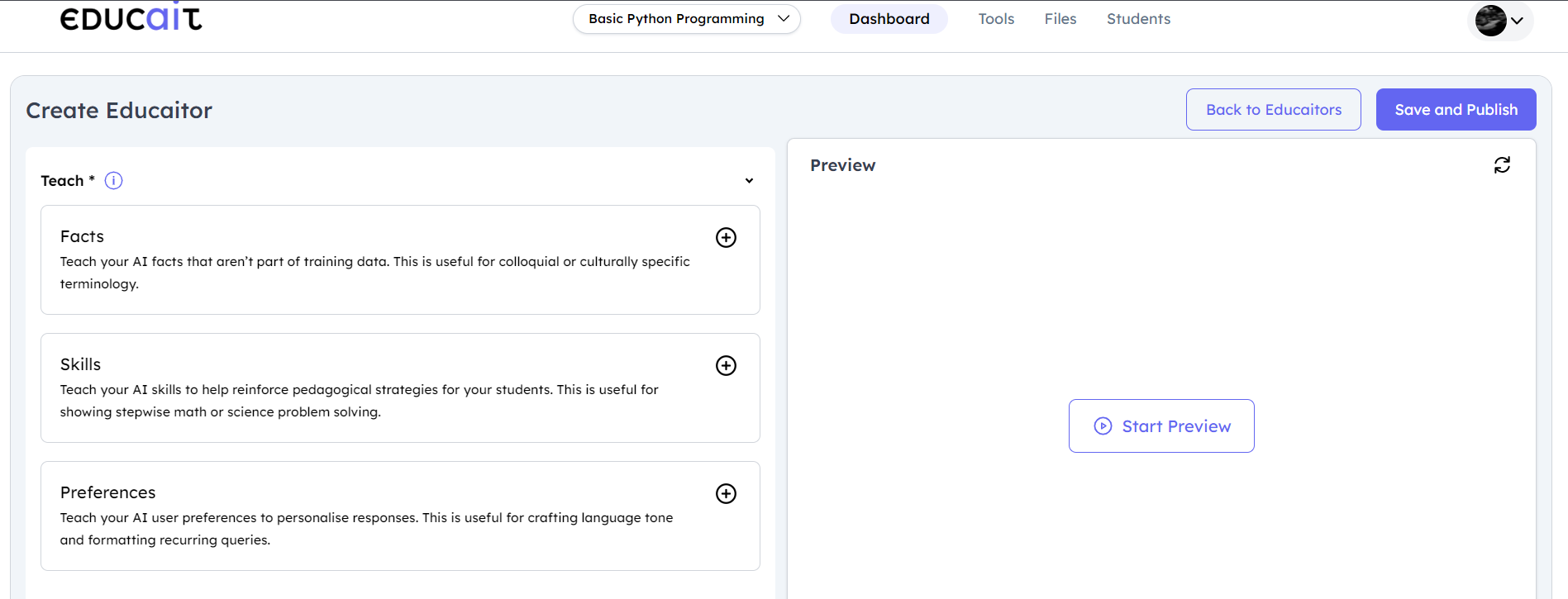
Teach section includes AI Facts, AI Skills, AI References to teach to students.
Fields
Description
Facts
Teach your AI facts that are not part of training data. This is useful for colloquial or culturally specific terminology
Skills
Teach your AI skills to help reinforce pedagogical strategies for your students. This is useful for showing stepwise math or science problem solving
Preferences
Teach your AI user preferences to personalise responses. This is useful for crafting language tone and formatting recurring queries
The Guardrail section includes:
Restrict To Topic
Reading Level
Reading time
Saliency Check
Responsiveness Check
Response Evaluator
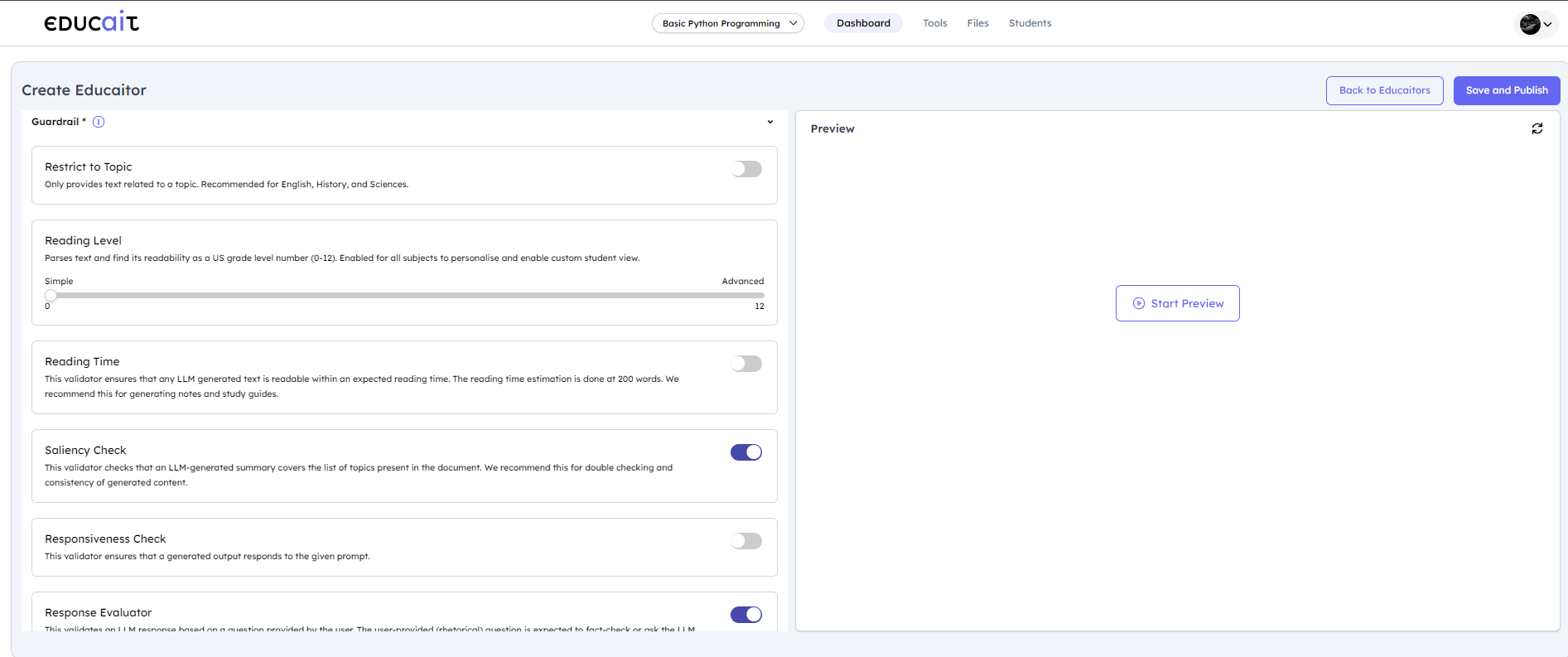
Guardrail section includes different fields and its description.
Add Guardrail Click Add Guardrail and fill in the requested details.
header-rows Fields
header-rows Description
Restrict to Topic
Only provides text is related with a topic. We recommend this for English, History and Sciences
Profanity Free
This validator ensures that there is no profanity in any generated text
Valid Python
Checks if a string is valid Python syntax by trying to parse the string into an abstract syntax tree. Note that this validator doesnot check for things such as correct argument names. We recommend this for Computer Science and Robotics
High Quality Translation
Evaluates whether a translation is of high quality. It is useful for validating the output of language models that generate translations. We recommend this for foreign languages
Correct Language
Checks if text is in the expected language. We recommend this for foreign languages
Detect PII
This Validates the any gives text does not contain PII. We recommend these for general data practices for students
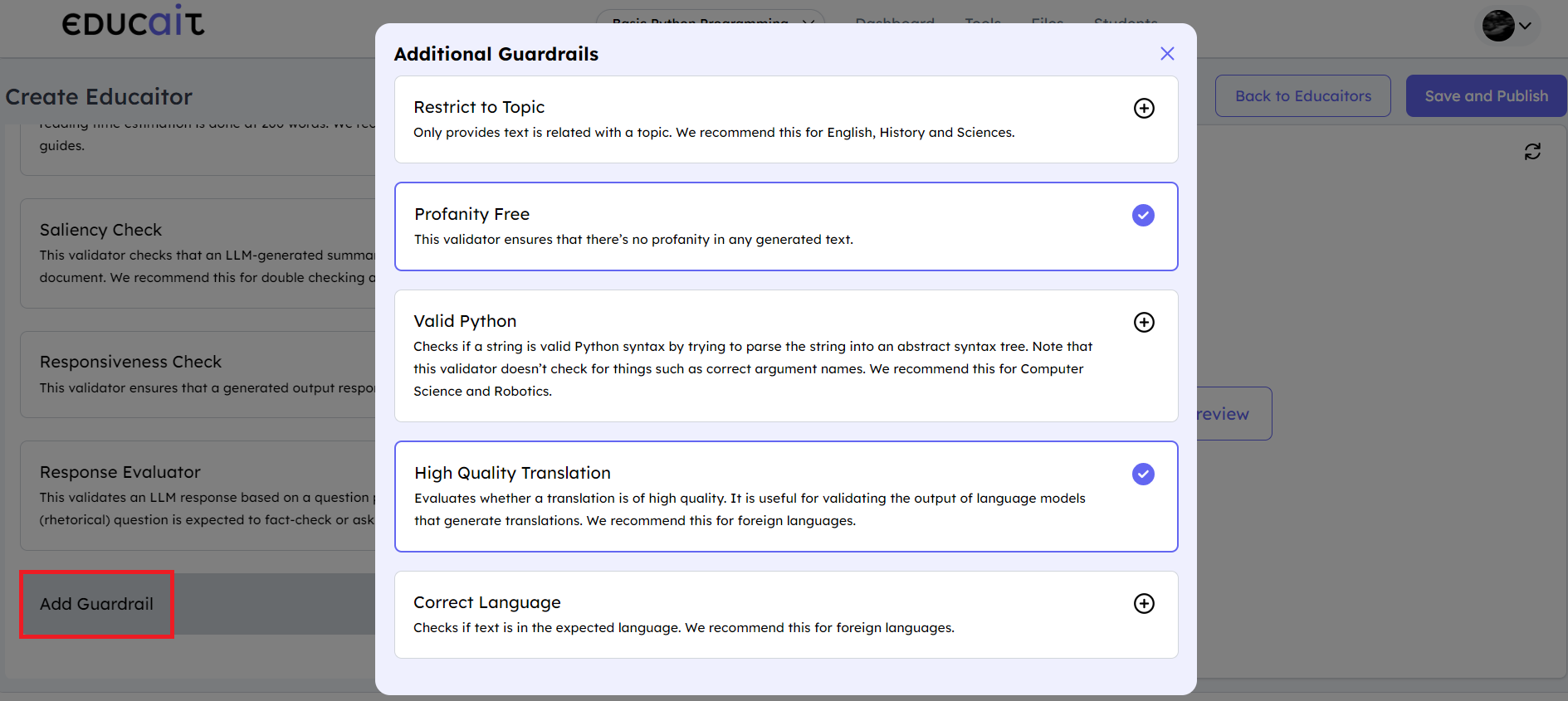
It includes Additional Guardrails
Create Educaitor (Teacher)
Go through step-by-step tutorial designed to guide you through each phase of the process with ease and clarity.
Educaitor Journey (Student)
Go through step-by-step tutorial designed to guide you through each phase of the process with ease and clarity.
Custom Educaitor (Student)
Go through step-by-step tutorial designed to guide you through each phase of the process with ease and clarity.