Dashboard
For Teacher
The teacher Dashboard displays a list of the courses and Educaitors created by the teacher.
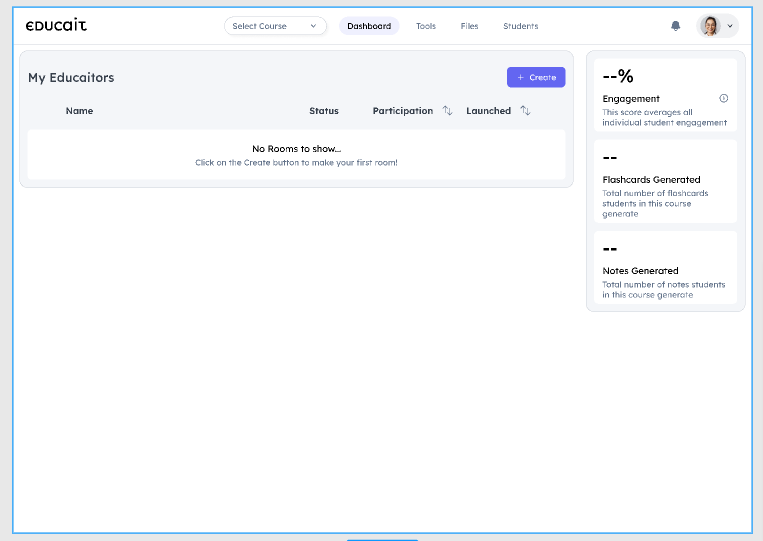
Click on Create to set up an Educaitor for the course.
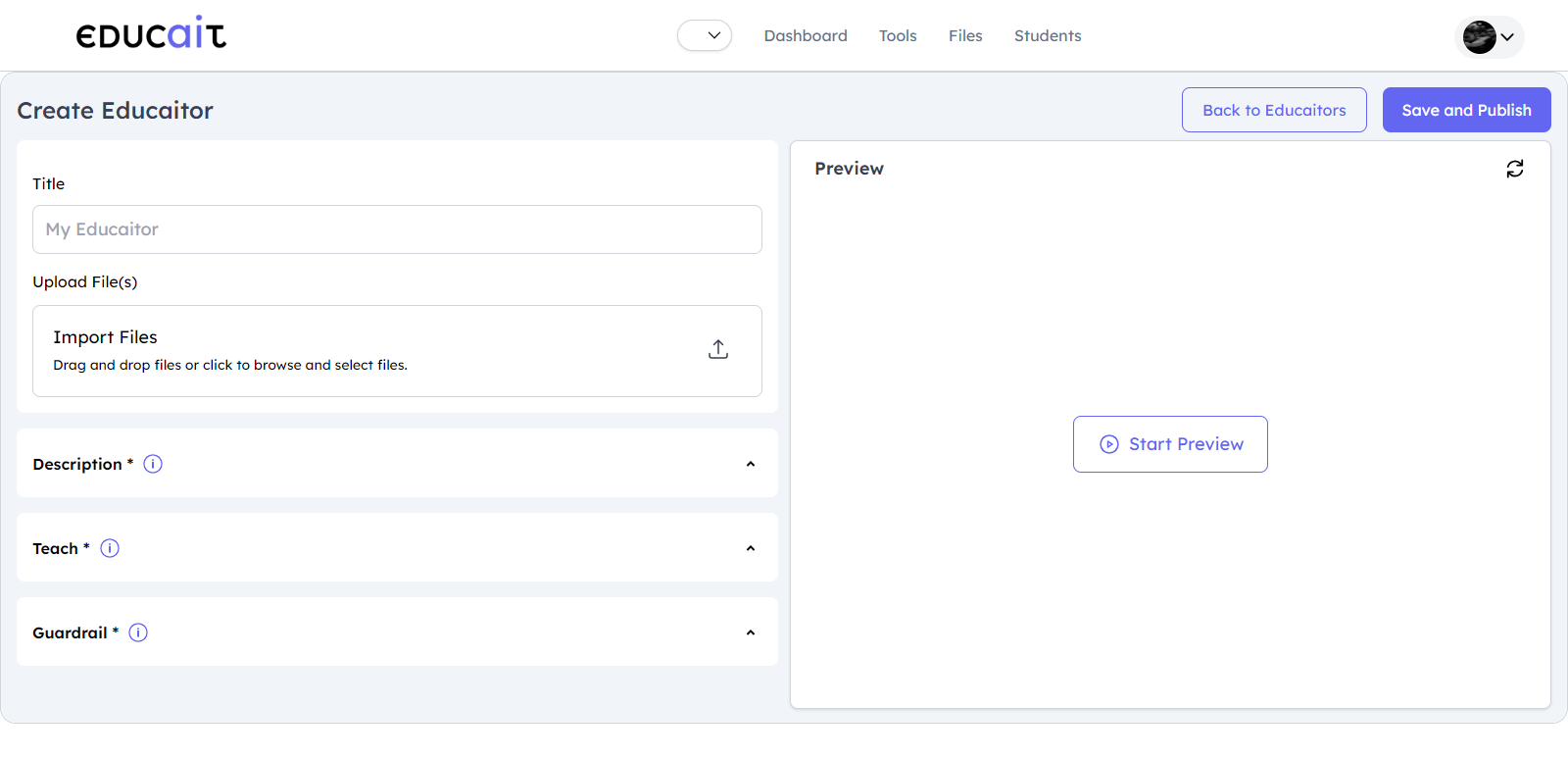
Create an educaitor for the course
Title
Enter the course title.
Upload files
Upload necessary files. Teachers can select files from the existing collection available in the room. A new window opens to choose from the existing collection.
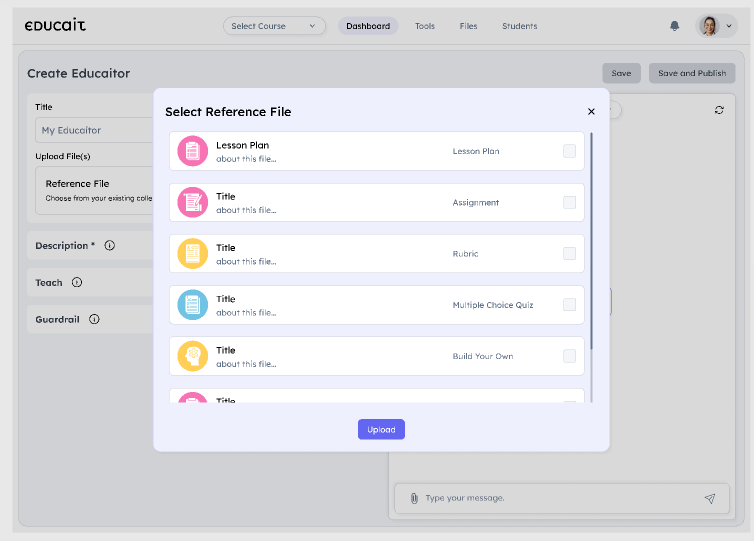
Upload necessary files from the existing collection in the room
Click Upload to add a reference file.
Description
Provide a detailed course description. Click on Generate to open additional tabs for Instructions and a Checklist of goals, including Practice Questions, Topic Quiz, and Self-Assessment.
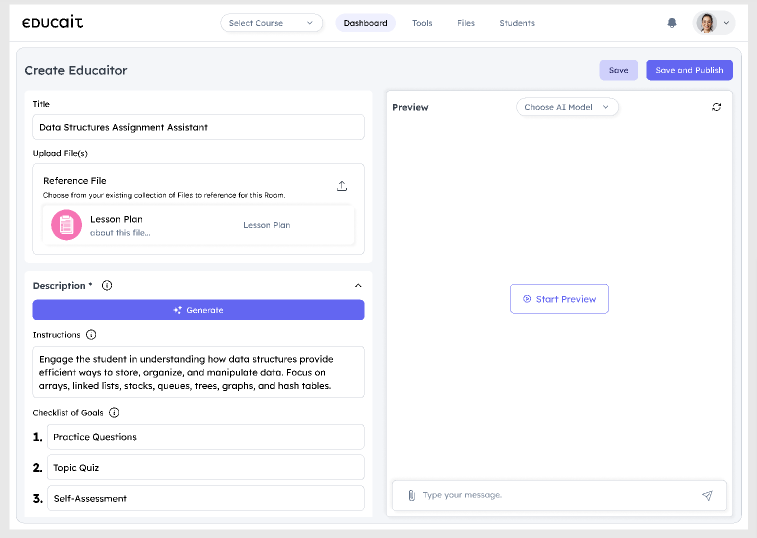
Provides detailed course description
Teach
Defines what will be taught in the course.
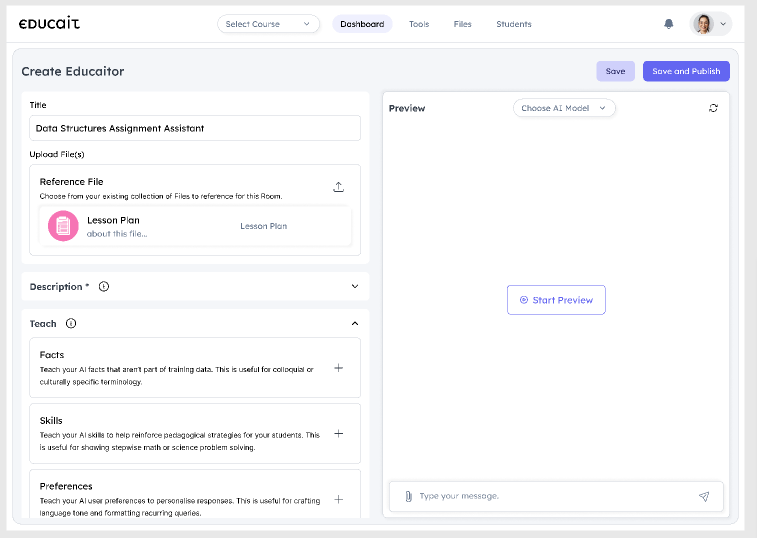
It defines what is taught in the course
Teach tab contains 3 sections:
Field |
Description |
|---|---|
Facts |
Teach your AI facts that are not part of the training data. This is useful for colloquial culturally specific terminology. |
Skills |
Teach your AI skills to help to reinforce pedagogical strategies for the students. This is useful for showing step wise math or science problem solving. |
Preferences |
Teach your AI user preferences to personalize response. This is useful for crafting language tone and formatting recurring queries. |
Fields
Description
Facts
Teach your AI facts that are not part of the training data. This is useful for colloquial culturally specific terminology
Skills
Teach your AI skills to help to reinforce pedagogical strategies for the students. This is useful for showing step wise math or science problem solving
Preferences
Fields, Teach your AI user preferences to personalize response. This is useful for crafting language tone and formatting recurring queries
Guardrail
Set guidelines or boundaries for the course content.
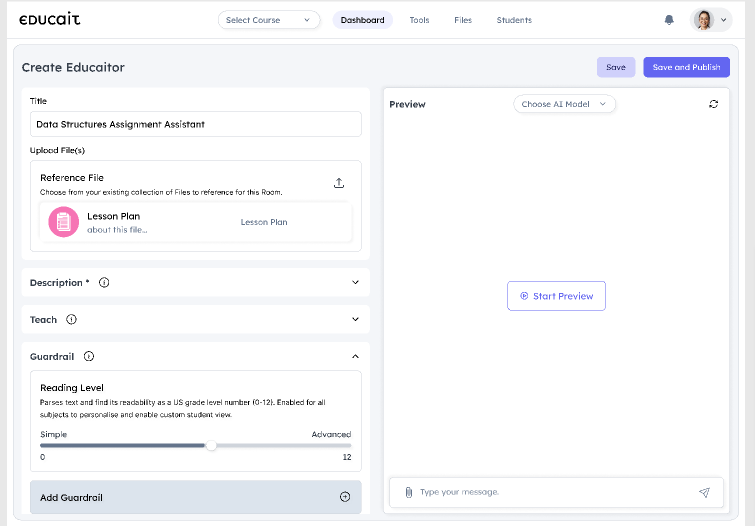
Teacher will set guidelines/bounaries for the course content
To add guardrails, click on Add Guardrails. A new screen comes up as depicted below.
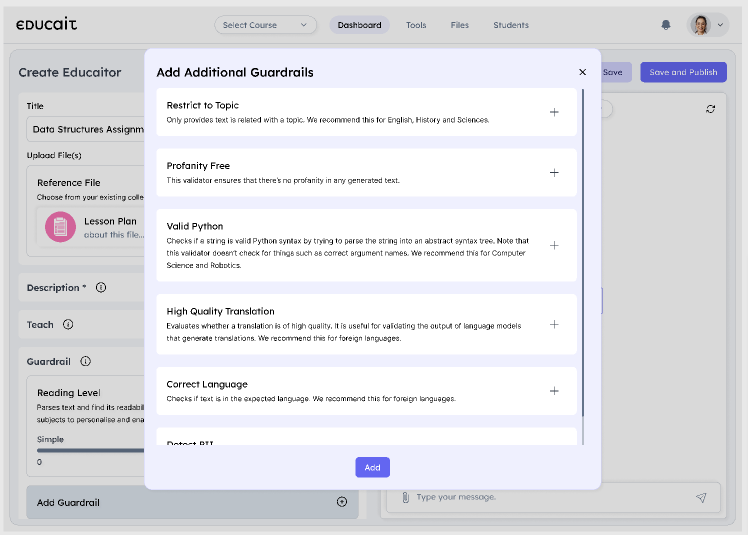
Adds additional guardrails
Select your preference and Click Add.
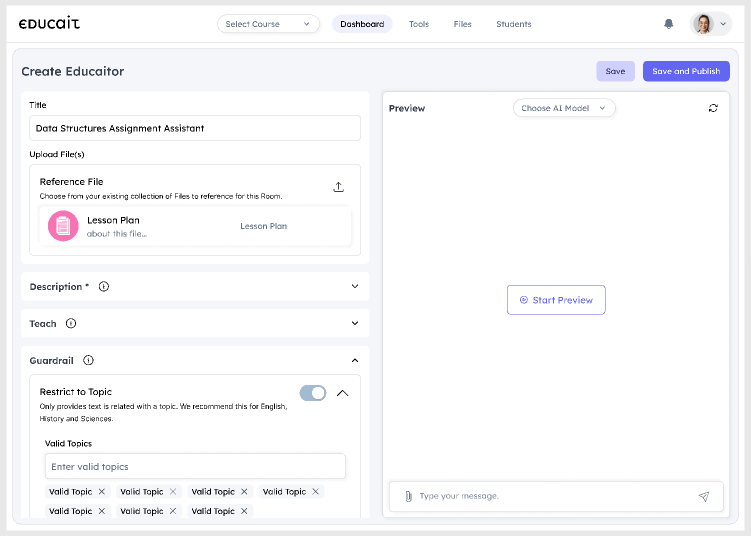
Teacher saves and publish the course and makes it visible to students
By clicking on Save and Publish, the teacher will save and publish the course, making it visible to students. It takes us back to Dashboard.
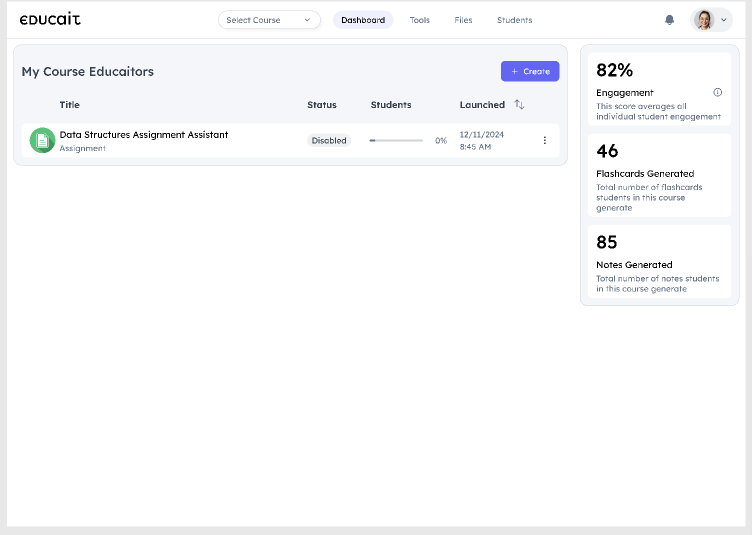
Goes back to Dashboard
For Student
It displays 4 tabs:
Select Course
Educaitors
Tools
Files
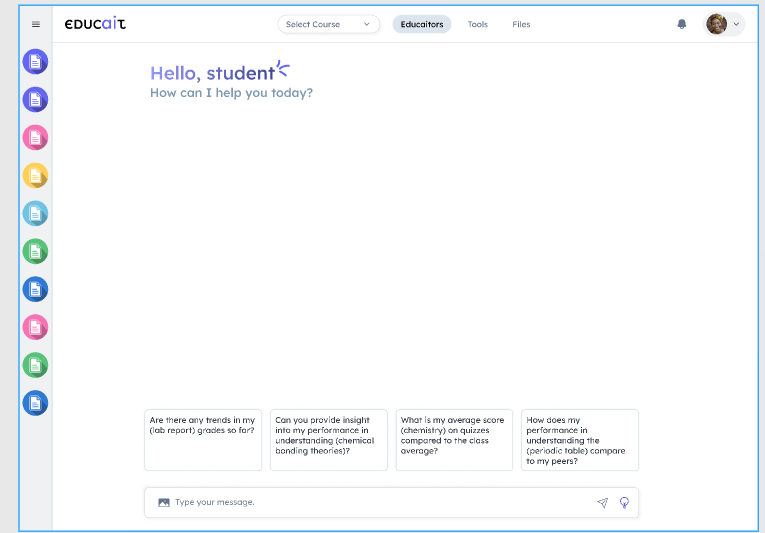
Student screen is displayed
Select the desired course from the Select Course drop-down menu.
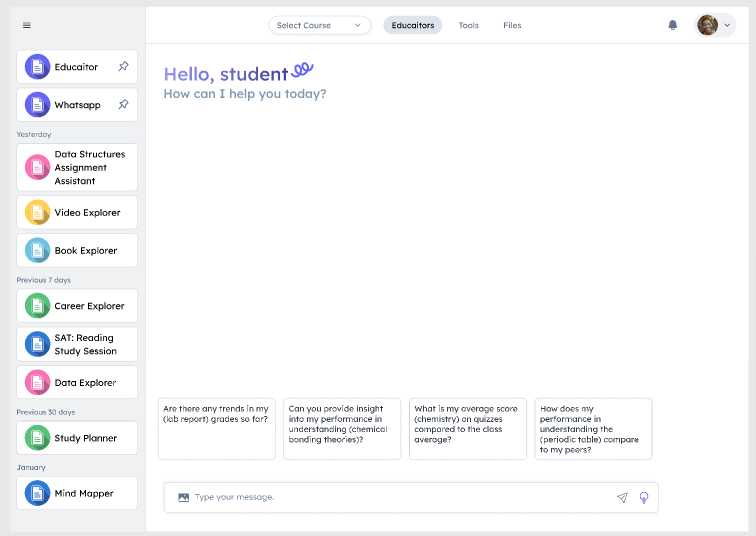
Student can select the course
After students select the course, a new screen will open as depicted below.
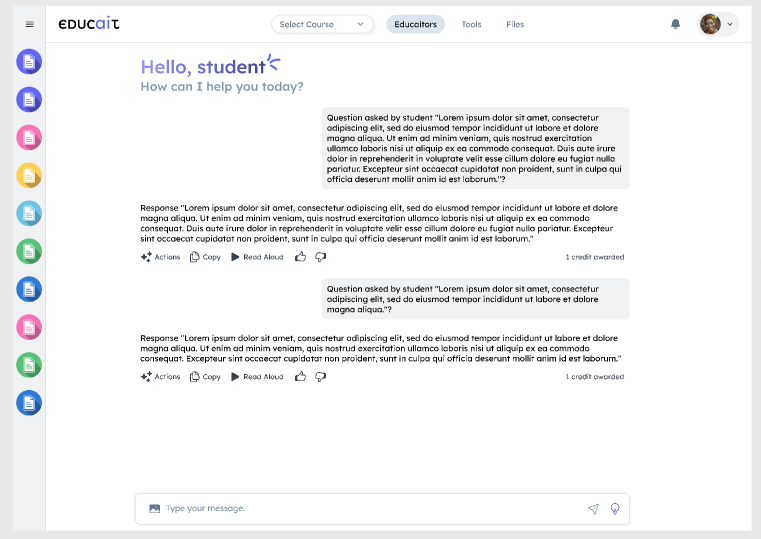
Student interaction with AI educaitor